


How to translate email templates automatically
Before you start
Each translation uses 1 credit. Your account includes 50 credits per billing cycle, which renew monthly on your subscription renewal date.
Only the parent (original) template is editable. Translated versions are generated from it and cannot be edited directly. To update a translation, edit the parent and retranslate.
If you duplicate a template, translated versions are not carried over. You'll need to recreate them on the duplicated template.
Supported languages
The following languages are currently supported:
Dutch
English
French
German
Italian
Lithuanian
Polish
Portuguese (BR)
Spanish
If your language isn't listed, go to Add languages and select Can't find your language? Request it to submit a request.
How to translate a template
1. Go to Email > Templates in the left sidebar.
2. Find the template you want to translate and click Manage, then select the Translations tab.
3. Click Add languages or Choose languages to open the language picker.
4. Select the languages you want to translate into. Each language uses 1 credit. Your remaining credit balance and the number of credits you're about to use are shown at the bottom of the panel. Click Next.
5. On the next screen, add any words or phrases in the template that you don’t want to be translated. These are called excluded terms and are useful for things like brand names, product names, or technical terms that shouldn't be translated.
Type each term and click Add term (maximum 50 characters per term). When you're ready, click Translate.
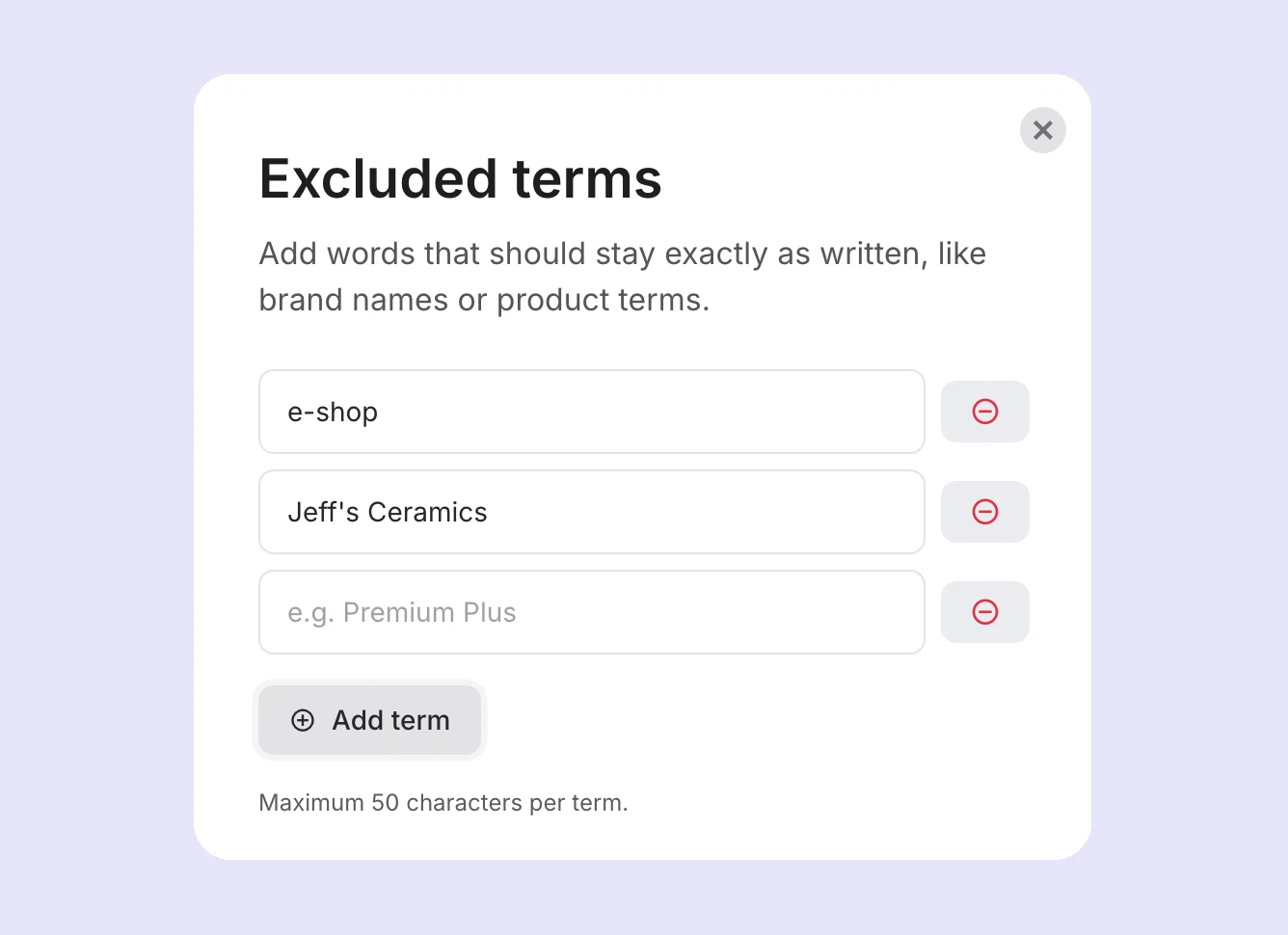
Example: If your template includes a product called "Cloud TPFF" or a feature name like "SmartScouting," add these as excluded terms so they aren't altered during translation.
Translations are generated automatically and typically complete within a few seconds.
6. Once complete, click Preview next to any language to review the output.
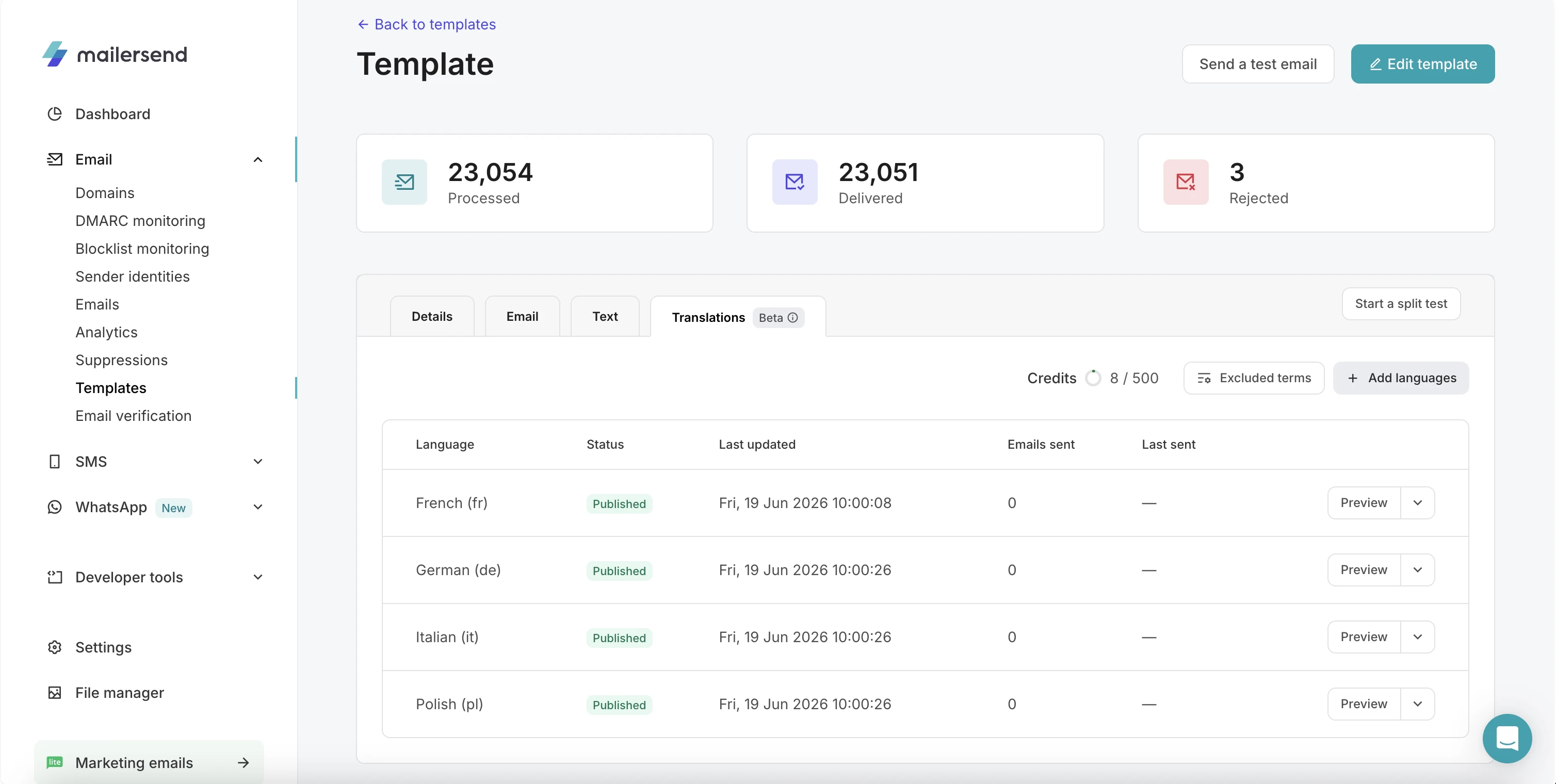
Note: Template variables like {{first_name}} or {{order_number}} are never translated. They appear exactly as written in the original template.
Managing excluded terms
The excluded terms library is account-wide, so the same list applies across all your templates. You can manage it at any time from the Translations tab by clicking Excluded terms.
Keep in mind that if you add or update terms after a translation has already been created, you'll need to retranslate for the changes to take effect. Updated terms only apply to new translations.
You can add up to 20 excluded terms per account.
Updating a translation
When you edit the parent template, existing translations are marked as Outdated in the Translations tab. To bring them up to date, go to the Translations tab and click Re-translate.
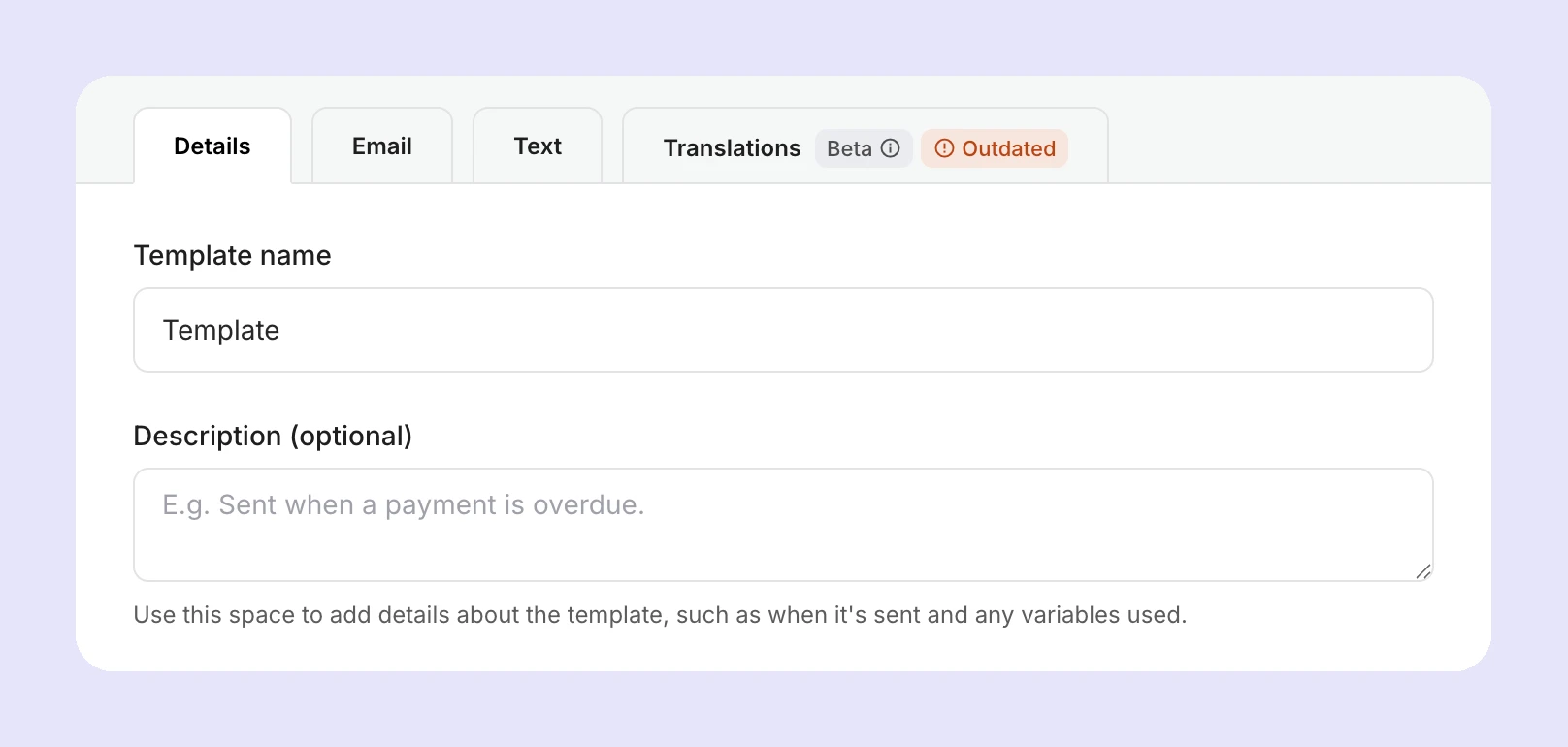
Each re-translation uses 1 credit per language.
Sending a translated template via API
To send a translated version of a template, add the language parameter to your API call at the top level of the payload, alongside template_id.
curl -X POST \
  https://api.mailersend.com/v1/email \
  -H 'Content-Type: application/json' \
  -H 'X-Requested-With: XMLHttpRequest' \
  -H 'Authorization: Bearer {place your token here without brackets}' \
  -d '{
      "from": {
          "email": "info@domain.com"
      },
      "to": [
          {
              "email": "recipient@email.com"
          }
      ],
      "subject": "Your subject here",
      "personalization": [{
          "email": "recipient@email.com",
          "data": {
              "first_name": "",
              "start_date": ""
          }
      }],
      "template_id": "{place your template ID here without brackets}",
      "language": "nl"
  }'
Use the language code that matches the translated version you want to send, for example, nl for Dutch or de for German.
The supported language codes are:
Language | Code |
|---|---|
Dutch | nl |
English | en |
French | fr |
German | de |
Italian | it |
Lithuanian | lt |
Polish | pl |
Portuguese (BR) | pt-BR |
Spanish | es |
Note: If the language value is valid but the template hasn't been translated into that language yet, the email will still send successfully in the parent template's original language. No error is returned. If the language value is not a recognised language code, the API will return a validation error: "The selected language is invalid."
Frequently asked questions
What happens if I downgrade from Professional?
If your account moves to a lower plan, your translations are deactivated. Recipients will receive only the default (parent) language from the date of the downgrade. Your translations are not deleted and will be reactivated if you upgrade back to Professional.
Can I edit a translated template directly?
No. Only the parent template is editable. To change a translation, edit the parent and retranslate.
Does translation affect my variables?
No. Variables like {{first_name}} are always preserved exactly as written.
Are excluded terms shared across all my templates?
Yes. The excluded terms library applies to your entire account, not individual templates.
Can I add more languages after the initial translation?
Yes. Go back to the Translations tab and click Add languages at any time. Each new language uses 1 credit.
What if the translation quality isn't right?
You can retranslate at any time from the Translations tab. The ability to manually edit translations is planned for a future update.
Need more info?
Feel free to reach out to support@mailersend.com. A member of our support team will gladly assist you.