


DMARC monitoring
DMARC stands for Domain-based Message Authentication, Reporting, and Conformance (RFC 7489). It is an email authentication, policy, and reporting protocol that is set up on the DNS settings of a domain as a TXT record.
A DMARC policy protects your domain from spoofing and phishing email attacks by establishing rules for receiving mail servers to follow when evaluating the authenticity of email messages claiming to be from your domain. If a domain doesn’t have a DMARC policy in place or if it has not been configured correctly, it could result in emails not being delivered.
MailerSend’s DMARC monitoring tool allows you to set up automatic DMARC reports from the most popular email providers, like Gmail, with full reporting about your domain usage. DMARC reports are automated emails sent by receiving mail servers to the email address specified in the DMARC policy.
By analyzing DMARC reports, you can get a better understanding of how your domain is being used and take steps to protect it.
How to set up DMARC monitoring
1. Under Email, click DMARC monitoring.
2. Click the Monitor domain button to add a domain.
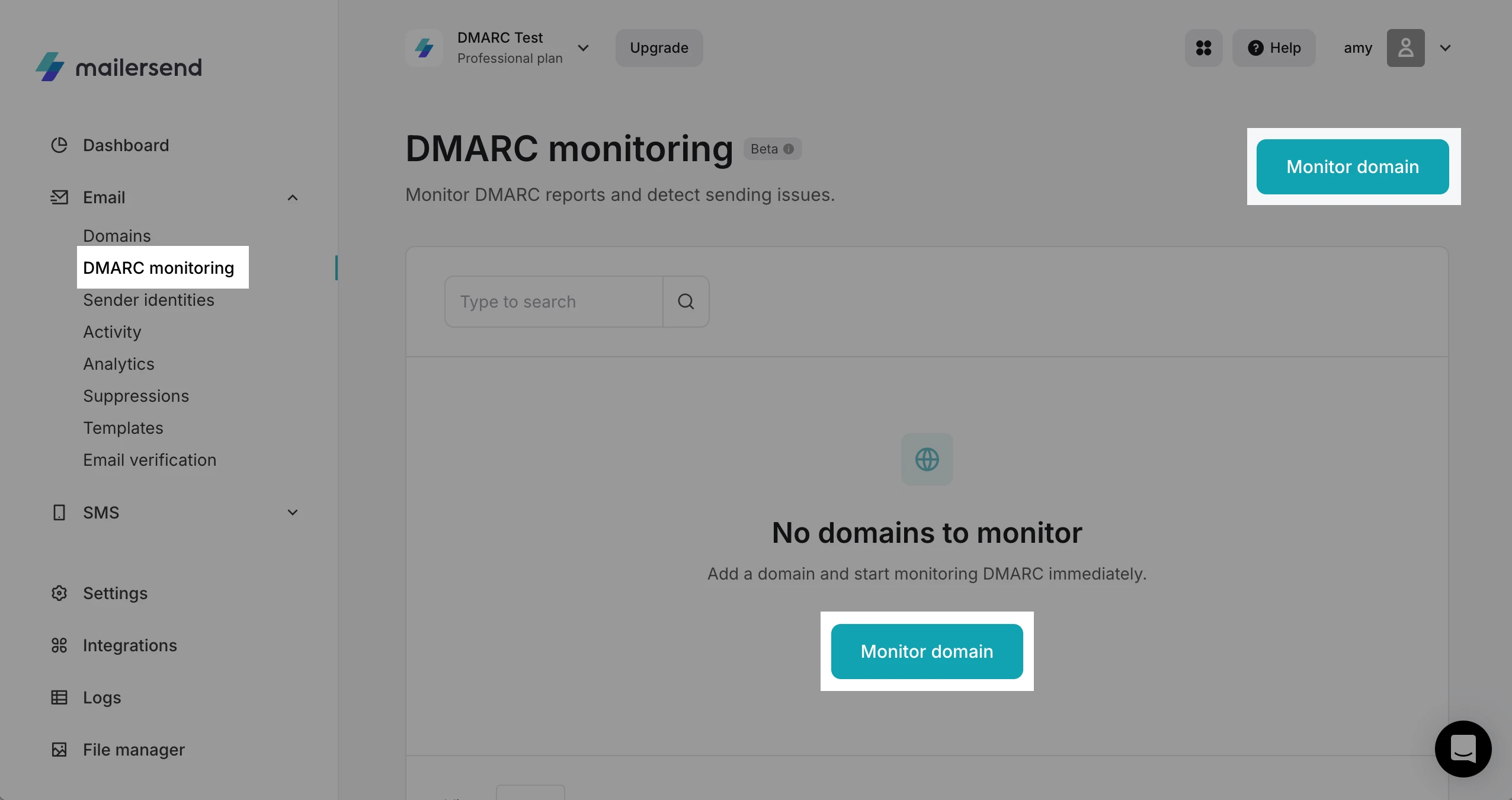
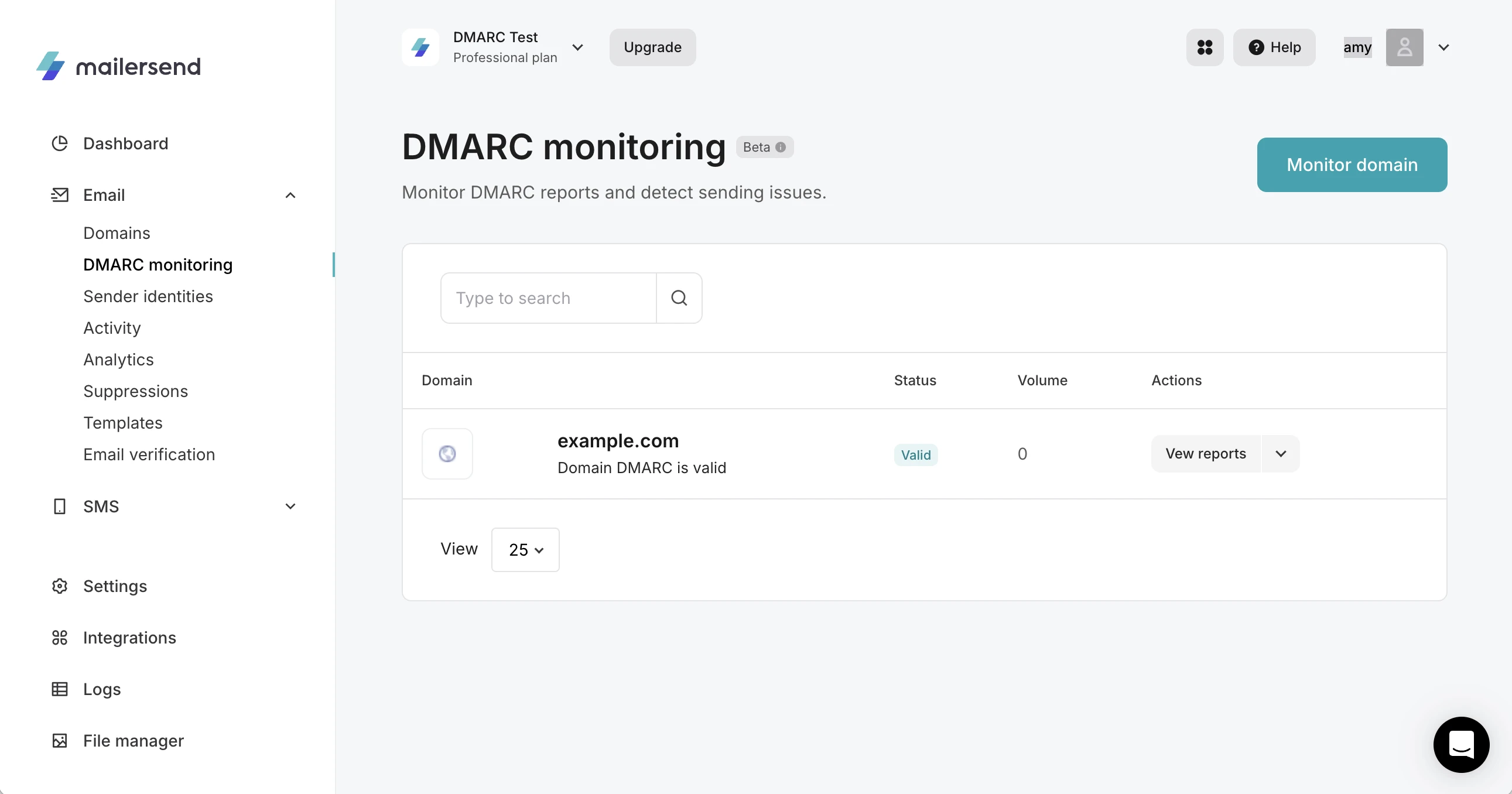
3. Select your domain from the dropdown and click Add domain. If you have already added a DMARC record for your domain and it matches the record in MailerSend, the status will display as Valid. You’re all set, and you’ll start receiving DMARC reports. If not, proceed to the next step.
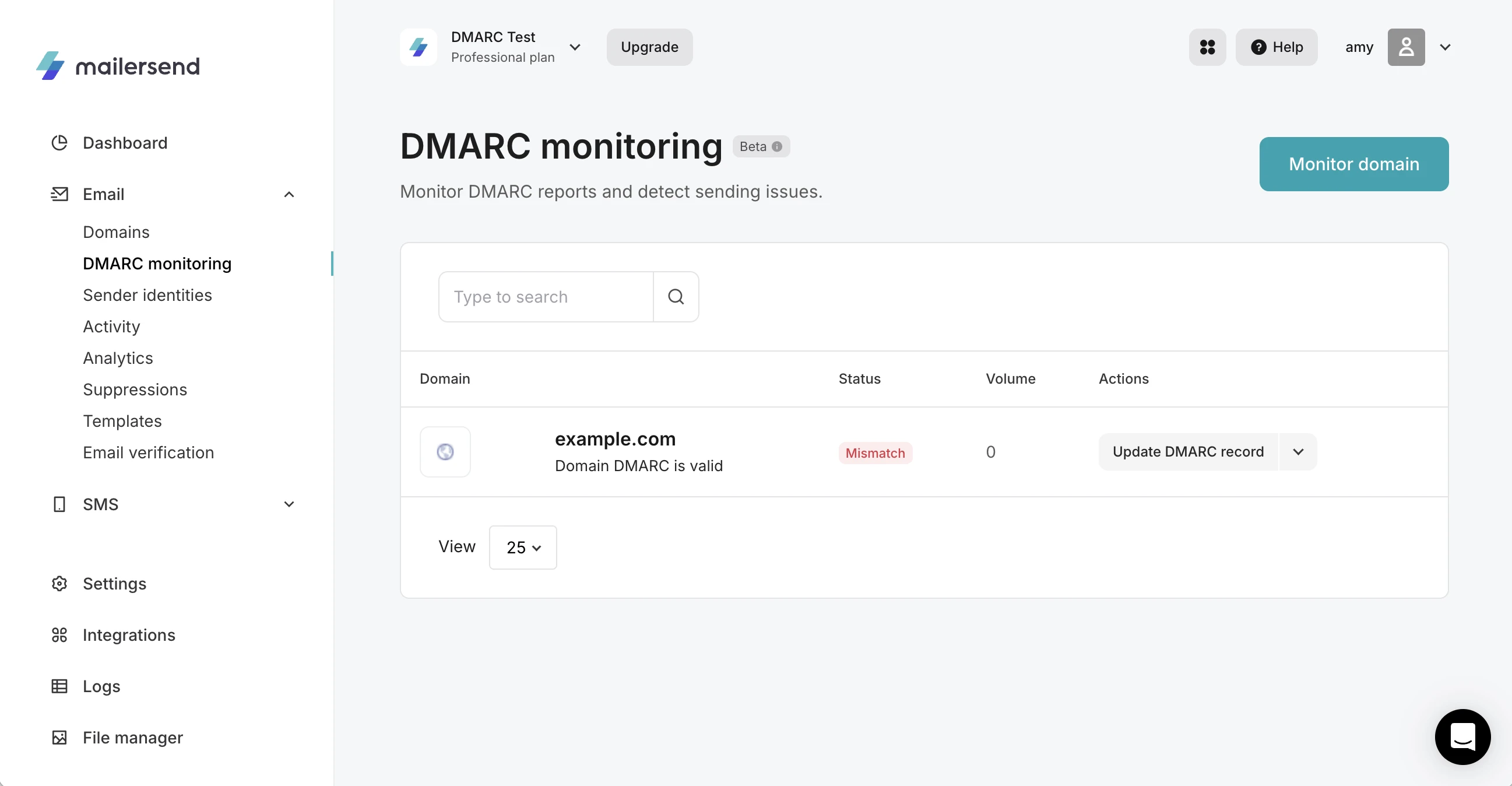
4. If no DMARC record is present or there is a mismatch between the record on your domain and the one in MailerSend, you’ll see the status Mismatch. Click Update DMARC record.
5. A record will be automatically generated for you, and you can click Customize the settings to select the preferred options for your record (view Customizable settings below). The changes will be reflected dynamically, and you can add the new DMARC record as a TXT record to your DNS.
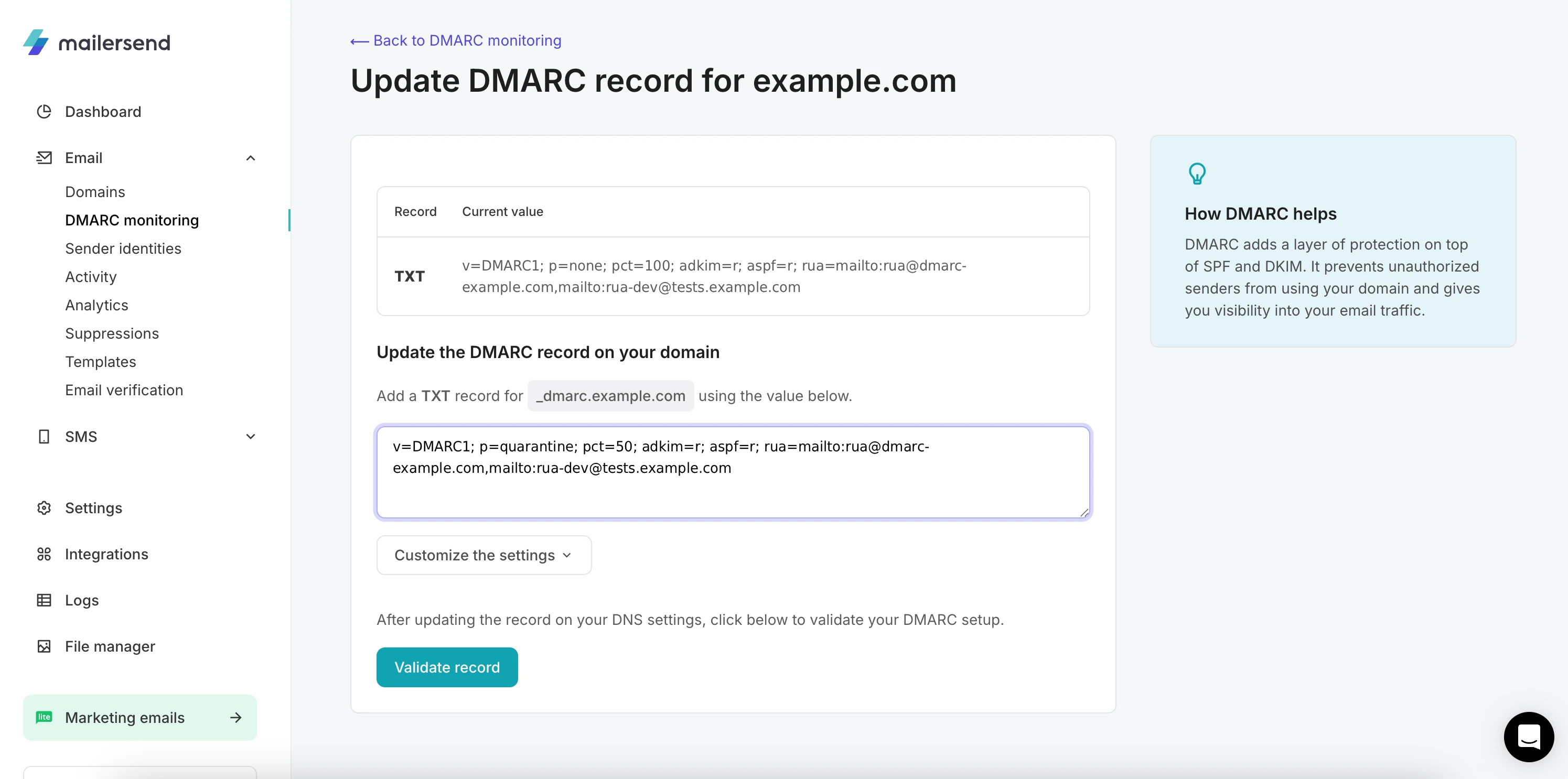
Alternatively, if you already have a valid DMARC record in your DNS, you can edit the record added in MailerSend to match.
6. Once the record in MailerSend and in your domain’s DNS match, click Validate record.
Customizable settings
You can customize the following settings in the DMARC generator:
DMARC policy
This setting instructs mailbox providers on what to do with an email if it fails authentication. The options are None, Quarantine, and Reject.
None allows you to monitor activity without affecting deliverability by instructing servers to take no action if an email fails authentication
Quarantine instructs servers to send suspicious emails to spam
Reject instructs servers to block suspicious emails entirely
You can also specify the percentage of email traffic to which you would like the chosen policy applied. You can also choose to set a different policy for subdomains by toggling the option to enable it.
Advanced options
DKIM alignment
This setting ensures that the domain in the email’s From: address matches that of the domain in the DKIM signature. The options are Relaxed and Strict.
Relaxed is the default setting and specifies that only the organizational domain needs to match. For example, yourdomain.com and email.yourdomain.com will match
Strict specifies that the domains need to match exactly, meaning the above example would fail
SPF alignment
This setting ensures that the domain in the email’s From: address matches the domain used in the SPF authentication’s Return-Path (envelope-from). The options are Relaxed and Strict.
Relaxed is the default setting and specifies that only the organizational domain needs to match. For example, yourdomain.com and email.yourdomain.com will match
Strict specifies that the domains need to match exactly, meaning the above example would fail
How to access your DMARC reports
1. On the DMARC Monitoring page, click the domain that you want to check the DMARC reports for or click View reports.
2. Scroll down to Domain summary, and click the Report button to view the aggregate report for a specific sending.
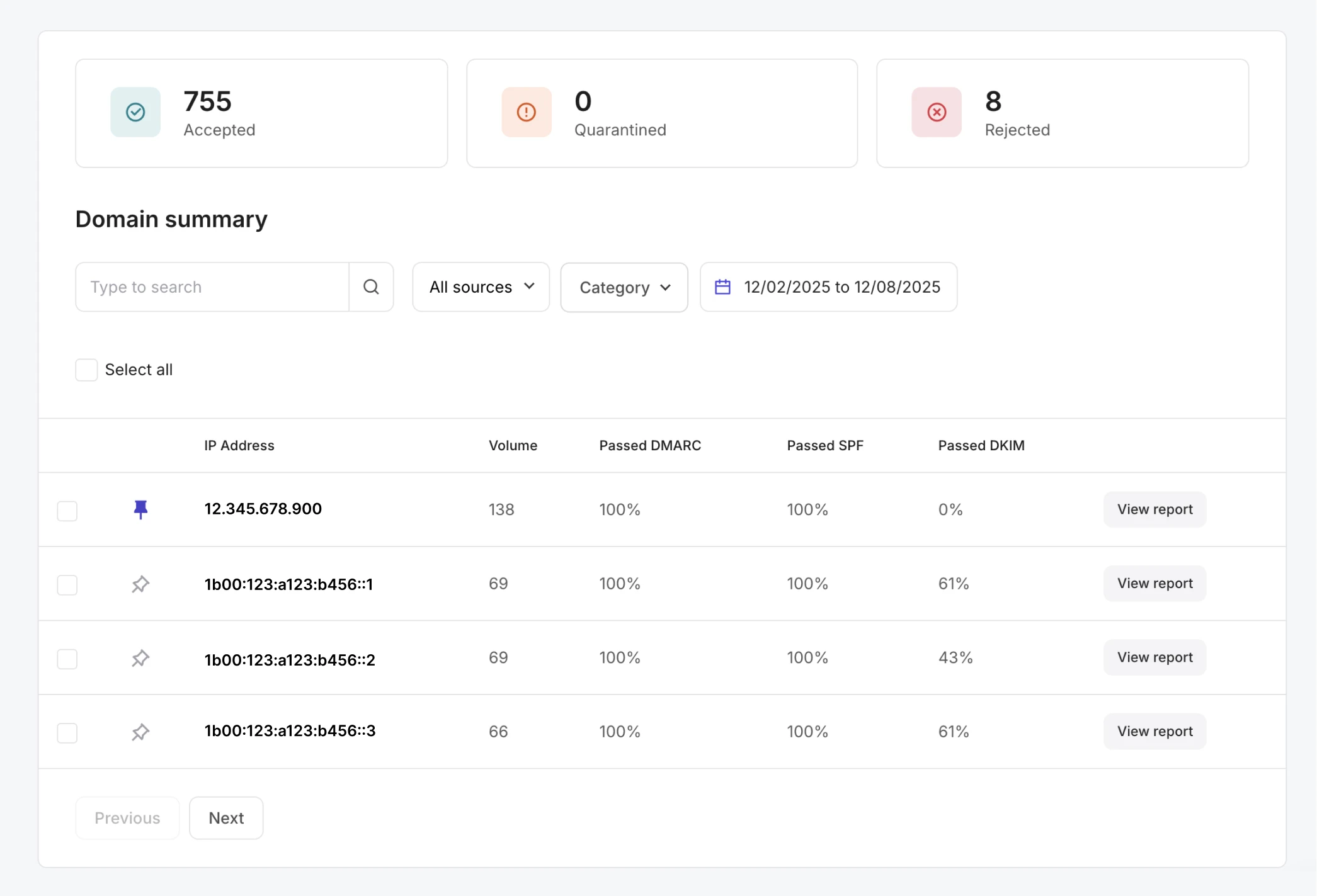
You can filter reports by date range, source and category, and use the search box to search for a specific report.
How to read DMARC reports
There are two main types of DMARC reports that mailbox providers send: forensic reports (also known as failure reports) and aggregate reports.
After the record has been added, MailerSend will show the aggregate reports that are received from email providers.
DMARC aggregate reports
DMARC aggregate reports provide information about the DMARC, SPF and DKIM authentication status of all emails that go through the authentication process. Unlike forensic reports, aggregate reports do not contain any sensitive information, but they do provide insights crucial for monitoring your domain sending activity, including:
Information about the Email Service Provider (ESP), including domain and email address
Date range
Email source IP address
Number of messages sent
SPF domain
SPF authentication result
SPF domain alignment result
DKIM domain
DKIM authentication result
DKIM domain alignment result
Policy applied by the receiver
Applied policy
The Applied Policy is an important part of DMARC reports because it can help you to understand how your DMARC policy is being treated by receiving mail servers. For example, if the DMARC policy for the sending domain is p=reject, then all messages that fail DMARC authentication will be rejected, regardless of the policy provided by the DMARC record.
If you see that a lot of your messages are being quarantined or rejected, then you may need to adjust your DMARC policy to be more strict.
Depending on whether the criteria set out in your DMARC policy are met, the email provider will return one of the following actions:
None: The policy was applied by the mailbox provider because all audits passed, so there was no reason to reject or quarantine the email, and it was delivered
Quarantine: The ISP quarantined the email in accordance with the domain's policy. If the receiving mail server has a quarantine mailbox, this is where the message will be delivered
Reject: The ISP rejected the email, in accordance with the domain's policy
Forwarded: The email was likely forwarded, based on local algorithms that identified forwarding patterns. Authentication can be expected to fail
DMARC Override
The DMARC override tag is an important part of DMARC reports, since it can help you to understand why some of your messages are not being rejected even though they fail DMARC authentication.
For example, if you have a DMARC policy of p=reject and your emails are failing DMARC authentication but are still being delivered, the DMARC override tag can provide insights into whether the receiving mail server has overridden your DMARC policy, and if so, why.
local_policy: The local policy of the Mail Receiver exempted the email from being subjected to the action requested by its Domain Owner
mailing_list: The email was sent from a mailing list, so the filter program decided that it probably wasn’t legitimate
sampled_out: The message did not apply to the policy because its percentage setting pct was set in the DMARC record
SPF authentication
When an email server receives an email, it will check the SPF record for the domain in the From header, or "return-path" field of the email. If the IP address of the sending server is not listed in the SPF record, the email will be rejected or quarantined.
The SPF Authentication tag indicates whether the SPF check passed or failed. If you see that a significant number of your messages are failing SPF authentication, you may need to investigate the IP addresses that are sending emails on behalf of your domain.
none: No SPF record was found for the domain or the server was unable to resolve the domain name in the DNS
neutral: SPF neutral can be interpreted in DMARC as either pass or fail, depending on how you set up DMARC on your email server. This is normally controlled by a flag in your DMARC setup
fail (hard fail): The IP address is not authorized to send from the domain. The SPF record does not contain the sending server or IP address used for sending email to the mailbox provider
softfail: The IP address may or may not be authorized to send from the domain. The mailbox provider will likely mark the message as suspicious; however, they will still accept it. A softfail does not necessarily cause deliverability problems by itself because mailbox providers rely on other data points to make a filtering decision
temperror: A temporary error occurred during the SPF verification process. This result is often due to technical issues that took place during the verification process. Temperrors do not necessarily mean the SPF record is invalid
permerror: The published SPF record could not be verified by the mailbox provider and could be because: multiple SPF records are found on one domain, the SPF record is syntactically incorrect, the number of DNS lookups involved in a single SPF check exceeds 10, or the number of void lookups involved in a single SPF check exceeds 2
SPF alignment
SPF Alignment helps to prevent email spoofing by ensuring that the domain in the From header of an email message matches the domain in the SPF record.
If you are noticing a lot of emails fail this check, it could indicate a misconfiguration in your email setup, or it could be a sign that someone is sending unauthorized emails that appear to be from your domain.
Pass: There is an exact match to the domain (i.e. yourdomain.com = yourdomain.com) or if there is a parent / child match (yourdomain.com & email.yourdomain.com)
Fail: The from domain doesn't exactly match the return-path domain or its subdomain
DKIM authentication
DKIM Authentication verifies that the email message has not been tampered with since it was sent.
When an email is received, the mail server performs the DKIM check by verifying this digital signature. If the signature is valid and the headers have not been altered, the check passes; if not, it fails.
If a lot of messages are failing DKIM authentication, it’s best to investigate the DKIM configuration for your domain. You should:
1. Check your DKIM records. Make sure that your DKIM records are correctly published in the DNS.
2. Check your DKIM keys. Check that your DKIM keys are valid and that they have not expired.
Pass: The DKIM header is the same as the domain’s
Fail: The email's DKIM header doesn't exactly match the domain's public DKIM key
DKIM alignment
For DKIM Alignment to pass in DMARC, the domain in the DKIM signature must either match exactly or be a subdomain of the domain found in the "From" header of the email.
If you're seeing a lot of emails fail this check, it could indicate a misconfiguration in how your emails are being signed.
Pass: There is an exact match to the domain (i.e., yourdomain.com = yourdomain.com) or if there is a parent / child match (yourdomain.com & email.yourdomain.com)
Fail: The d= tag doesn't exactly match the from domain or its subdomain
Report source
A report source is the mailbox provider that received the email and generated the report. This information is important because it can help you identify the source of any DMARC failures.
These reports are sent by the receiving mail servers, which could be managed by an ISP or another mail service like Gmail, Yahoo, Outlook, etc.
Need more info?
Feel free to reach out to support@mailersend.com. A member of our support team will gladly assist you.