


API & SMTP request logs
The Logs feature provides advanced request tracking with detailed logs to give you deep insights into every request made. It’s a powerful tool that can help you debug faster, monitor your quota usage, and keep your account secure.
How to access Logs
API and SMTP logs are available to Professional and Enterprise plan accounts, as well as Professional trial accounts (learn more about our plans and pricing). If you have a Hobby or Starter account, you can still access Template error logs.
Before using the Logs feature, you'll need to enable it for your account:
1. Navigate to Settings from the main menu.
2. In the Account tab, scroll down to Enable API Logging.
3. Toggle the option on and then click Update.
To access Logs, simply click Logs in the left-hand navigation menu. You can switch between API & SMTP logs and Template errors by selecting the respective tab.
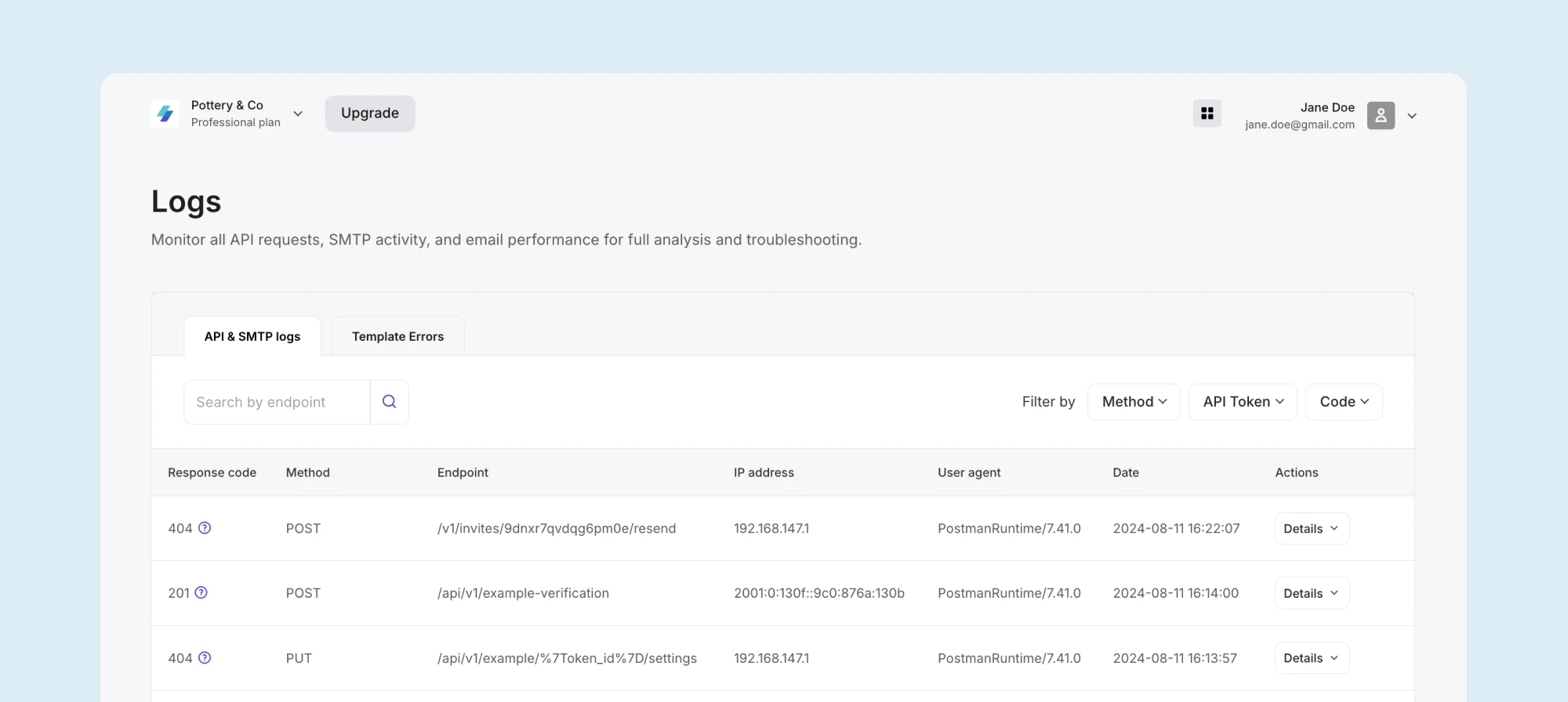
API & SMTP logs
This tab contains a complete list of your API and SMTP requests, within your plan’s data retention period. For each request, you’ll be able to view:
Response code
Request method
Endpoint used
IP address
User agent
Date and time the request was made
You can also view the full request and response by clicking Details.
Filtering
To more easily locate specific requests, you can filter the logs by:
Endpoint
Method: GET, POST, PUT, DELETE
API token used
Response code
For example, you can check whether there is an issue with your API keys by filtering the logs for the 401 response code, which indicates that the API token used is invalid.
Template errors
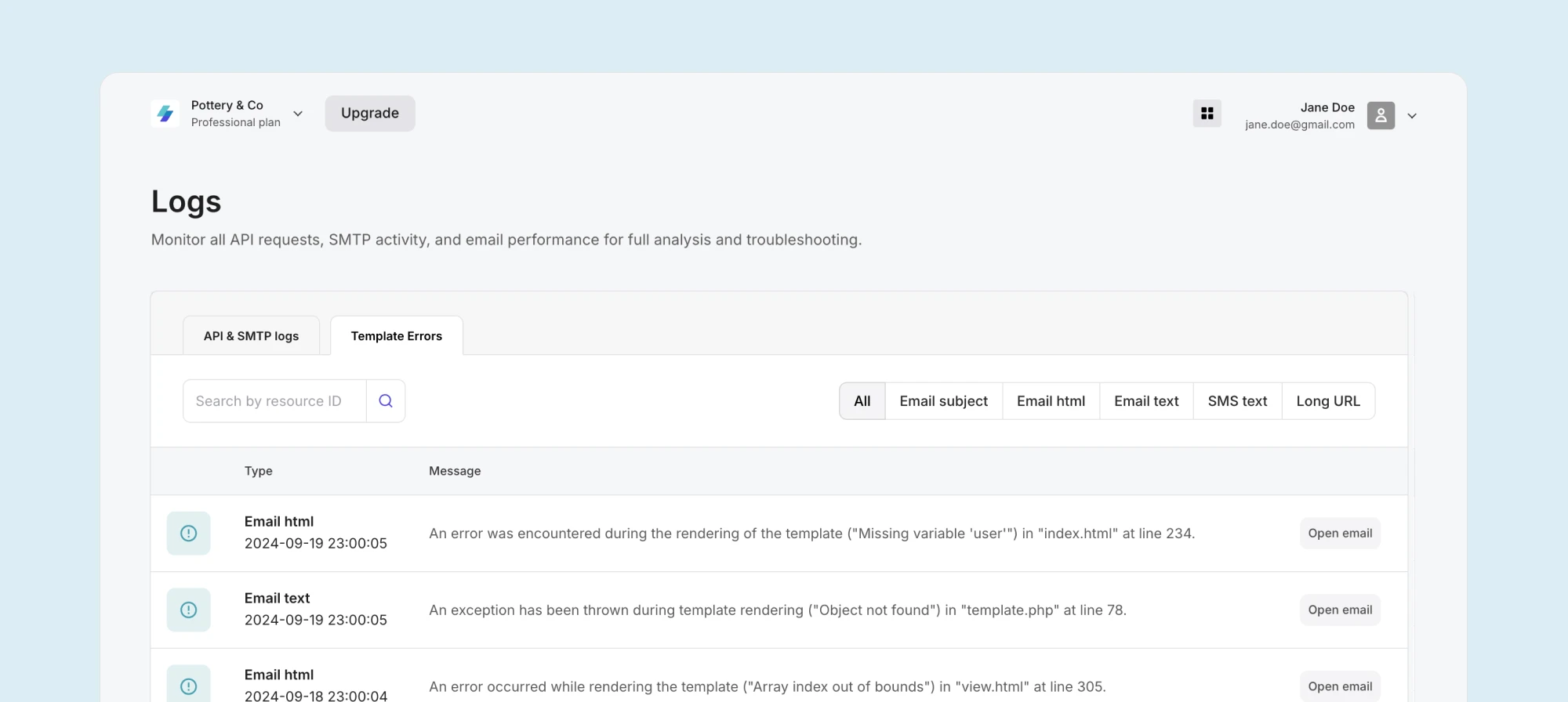
The Template errors tab is available for all plans and contains any Twig errors that come from the variables you use in your email templates. It identifies which line of code contains the error, making troubleshooting Twig errors much easier. For each error, you’ll be able to view:
The error type
The message containing the error and line of code
You can open the affected email template by clicking Open email.
Filtering
To search for errors on specific templates, you can filter them by:
Resource (template) ID
Email subject
Email HTML
Email text
SMS text
Long URL
Once you’ve identified the error, click Open email to fix the issue.
Limitations
API and SMTP logs are available to Professional and Enterprise plans, as well as Professional trial accounts, while Template errors can be accessed by all plans.
For Professional plans, log retention is 7 days, for Enterprise, 14 days, and for Professional trial accounts, 1 day.
Example use cases
1. Understand why requests fail and fix issues
Password resets, email verifications, and order confirmations are a few examples of crucial customer communication. If recipients don’t receive them, and they reach out to support for help, the added visibility of Logs will help you to quickly identify the reason the specific request failed and allow you to fix it.
2. Optimize sendings based on quota usage
If you regularly hit your daily request quota or rate limit, you can filter requests by response code 429 (Too many requests) to understand more about when these errors happen. You can then adjust your sending strategy, for example, by implementing bulk sending and queues for affected emails or specific times of the day to avoid hitting these limits.
3. Monitor sending sources
With visibility into the user agent and IP of every request, you can quickly identify if any unauthorized sending sources are making requests. What’s more, it can help you spot unusual sending patterns and detect unusual spikes from API keys.
Need more info?
Feel free to reach out to support@mailersend.com. A member of our support team will gladly assist you.