


Managing WhatsApp Business phone numbers
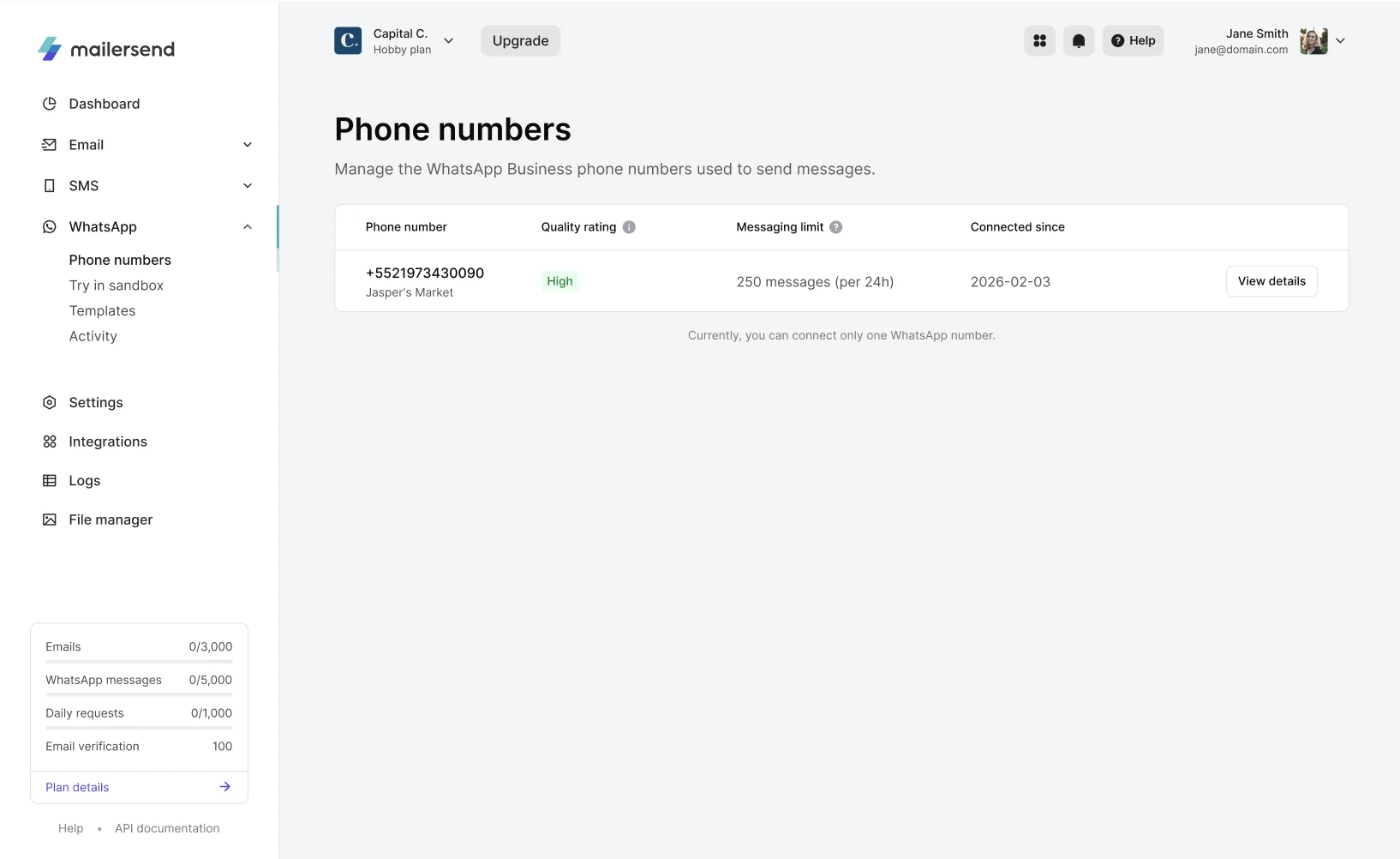
You can manage and view the details of your WhatsApp Business phone numbers from MailerSend by going to WhatsApp > Phone numbers from the left-hand navigation menu.
On this page, you’ll be able to see all of your connected phone numbers and their quality ratings, messaging limits, and connection dates.
Quality rating
The Quality rating is provided by WhatsApp and is calculated based on customer feedback from the previous 7 days.
High: Indicates the account has low negative feedback and good, engaging interactions
Medium: Indicates the account has received some negative feedback and messages may need to be improved
Low: The account has received high levels of negative feedback and may be restricted or moved to a lower messaging tier
If your quality rating drops to Low, you have 7 days to improve customer feedback, or your messaging limit will be lowered to the next tier. Templates with low quality ratings may be automatically paused or disabled.
Messaging limit
Messaging limits are the maximum number of phone numbers, set by WhatsApp, that your business can deliver to, within a moving 24-hour period, and outside of a customer service window.
These limits are set at the business portfolio level, meaning they are shared between all business phone numbers within the portfolio.
For example, if you have 3 business phone numbers in your portfolio, and a messaging limit of 2,000, the limit applies one time per 24 hours across all 3 numbers. If number 1 sends 1,000, number 2 sends 700, and number 3 sends 300, for a total of 2,000, the limit will be met, and sending will be paused for all numbers until the limit resets.
Messaging limits are as follows per 24 hours:
250: Applies to newly created business portfolios
2,000: By following the steps in WhatsApp’s scaling path
10,000: By automatic scaling
100,000: By automatic scaling
Unlimited: By automatic scaling
Business verification
To send WhatsApp messages, increase limits, and avoid restrictions, your business needs to be verified with Meta. If your business needs to be verified, you’ll see the following message on the Phone numbers page:

To get started with verifying your business, click Verify now. This will direct you to Meta Business Suite, where you can complete the steps to verify your business.
Verification involves providing information about your business, including business name, address, phone number, and website, and confirming your connection. To learn more, read Meta’s guide to verifying your business.
Edit or disconnect a number
Change your business display name
To edit your business display name (the name that shows up in conversations with customers on WhatsApp), click View details and then click Edit name on the Business display name section.
This will open Meta Business, where you can change your display name.
Disconnect your number from MailerSend
To disconnect your WhatsApp Business number from MailerSend, click View details and then click Disconnect number.
In the modal that appears, type in DISCONNECT and click Disconnect number to confirm.
Your number will be disconnected and removed from MailerSend.
Need more info?
Feel free to reach out to support@mailersend.com. A member of our support team will gladly assist you.