


How to connect and use the WhatsApp sandbox
Before purchasing the add-on, you can try out WhatsApp sending with the sandbox feature, for up to 20 messages per day to the WhatsApp account you connect. The sandbox feature is available to all plans.
Step 1: Connect to the sandbox
a) From the left-hand navigation menu, click WhatsApp, select Try in sandbox, and then click Connect to sandbox or scan the QR code.
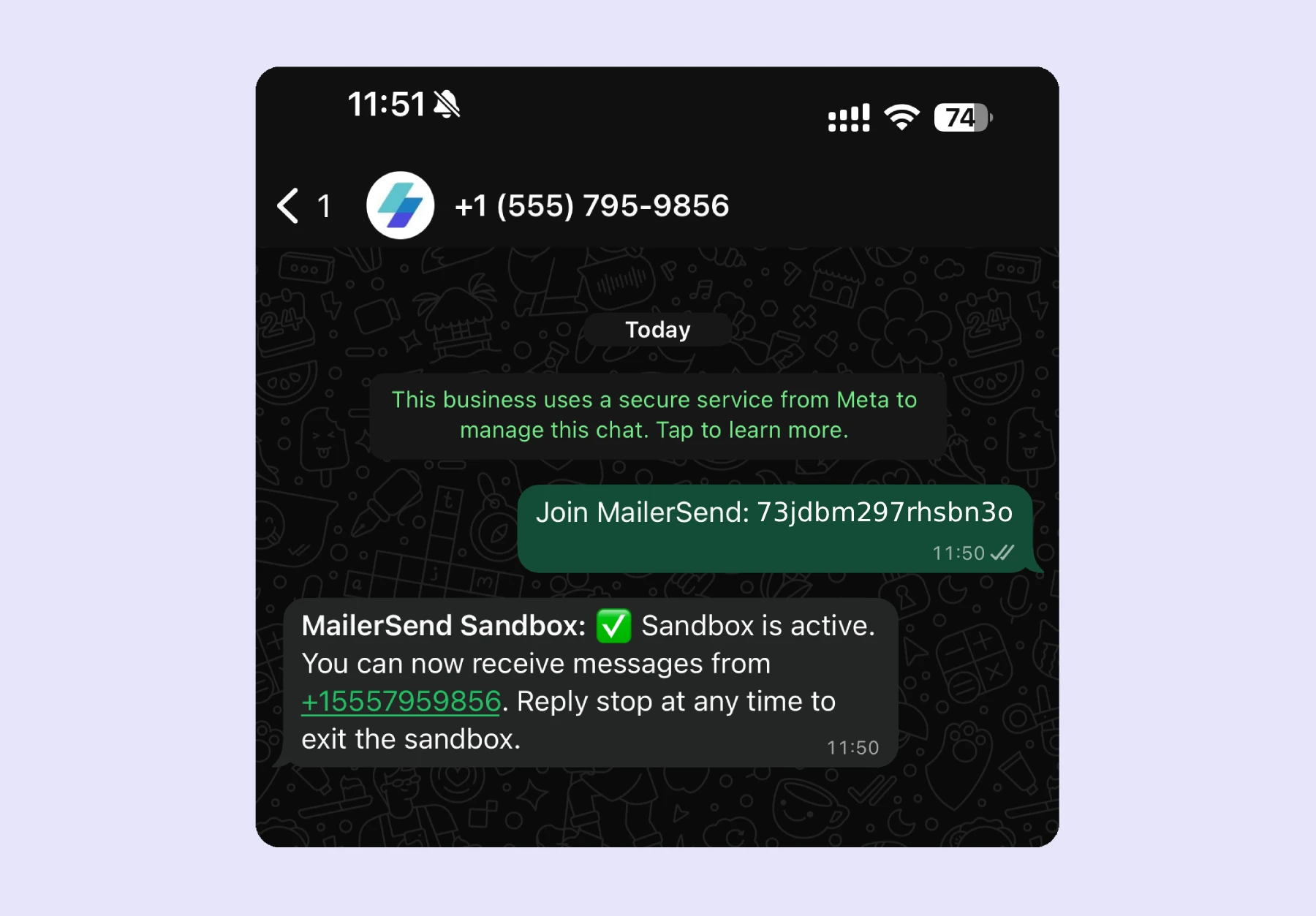
b) WhatsApp will open a chat with the MailerSend Business account and a pre-filled connection message. Tap the send icon to send the message.
c) When the connection message is received by MailerSend, you’ll receive a confirmation message that your sandbox is active. The sandbox will now be visible in your MailerSend account.
Step 2: Send a test message
You can send messages via 1-click send or API. All messages sent through the sandbox will be delivered to the phone number that you connected with.
1-click send:
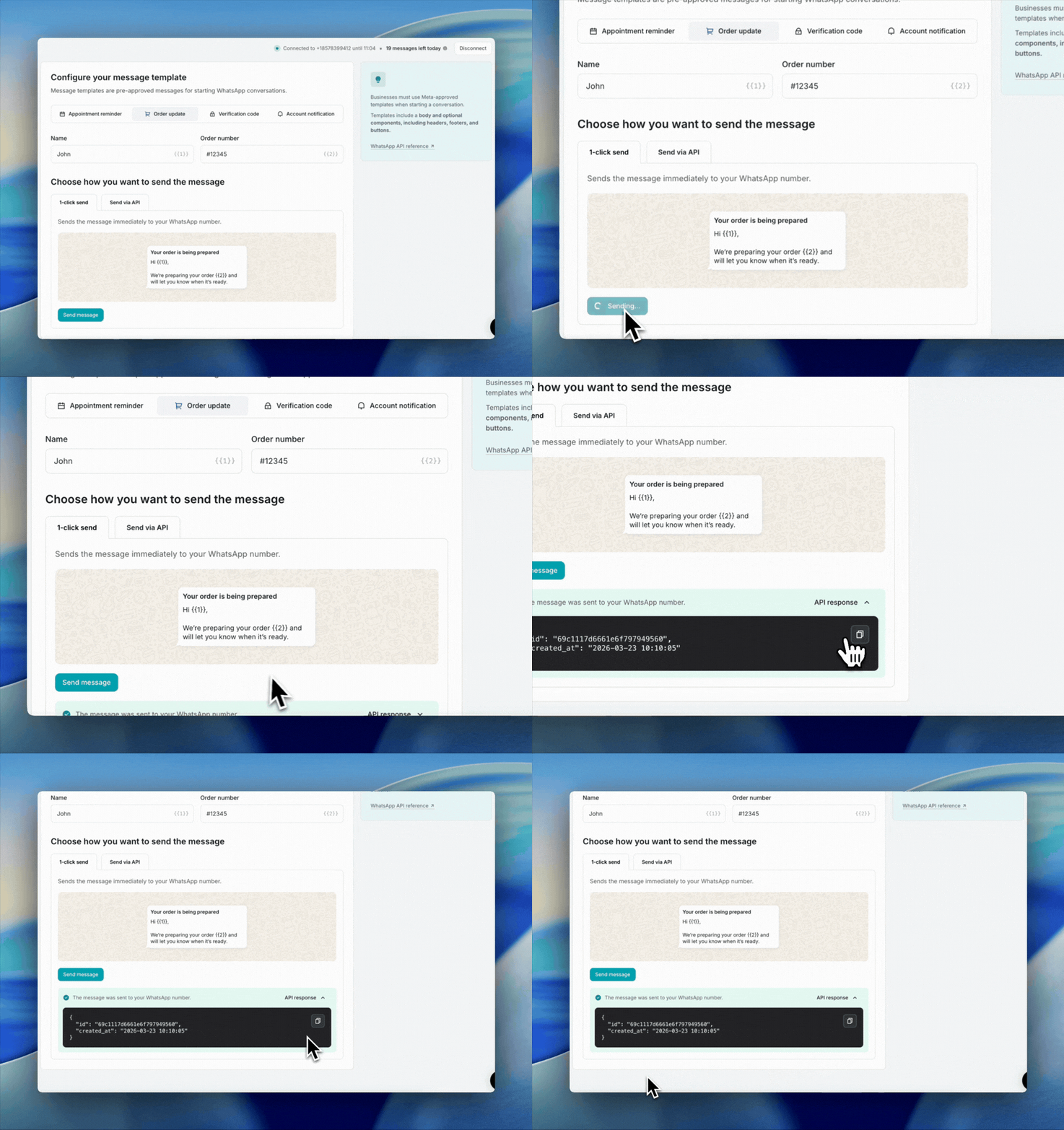
In the sandbox, choose the message template you’d like to send and adjust the variables, if necessary, and select the 1-click send tab. Then click Send message.
When the message has been delivered, a confirmation message will appear in the sandbox, with the API response.
Send via API:
a) In the sandbox, choose the message template you’d like to send and adjust the variables, if necessary, and select the Send via API tab.
b) Enter your API token. The code snippet will be auto-populated with your token. You can also create a new API token from the sandbox by clicking New API token.
c) In the sandbox, select a language and copy the code snippet. Make sure your API token has been added correctly, as well as the phone number that was used to create the sandbox connection.
d) Run the code to send your message.
How to disconnect from the sandbox
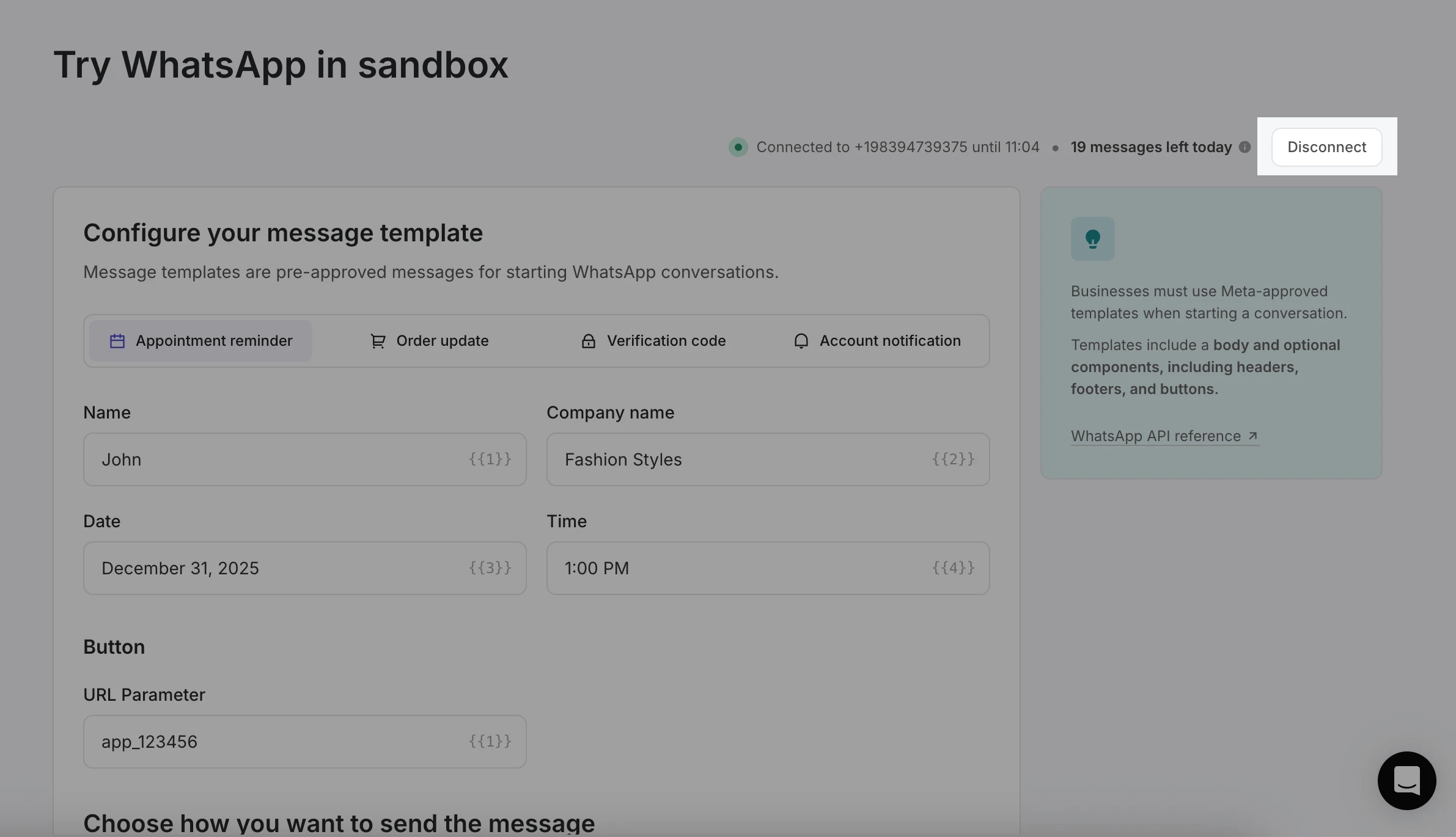
Once you’ve finished testing, you can disconnect from the sandbox by clicking the Disconnect button in the top right-hand corner.
You’ll receive a disconnection confirmation in the app.
Need more info?
Feel free to reach out to support@mailersend.com. A member of our support team will gladly assist you.