


WhatsApp inbound messaging: How it works and how to set it up
What is a WhatsApp inbound message?
A WhatsApp inbound message is any message a customer sends to your connected WhatsApp number, whether it's a reply to something you sent them or a message they start on their own. MailerSend receives it, processes it, and delivers it to your application through a webhook, so replies from your customers become data your app can act on.
How does WhatsApp inbound messaging work?
Once you've connected a WhatsApp sender and added a webhook for it, every message that lands in that number gets logged in your account and forwarded straight to your webhook endpoint.
WhatsApp inbound messages don't work like email inbound routes. A WhatsApp number is a single address, so there's no catch filter or routing logic to configure; every message you receive goes to your webhook as it comes in.
Each message includes a type, like text, image or location, plus the data that goes with it. Here's what a message looks like coming through your webhook:
{
  "type": "whatsapp.inbound",
  "webhook_id": "abc123",
  "created_at": "2026-08-26T10:50:46.628617Z",
  "data": {
    "id": "abc123",
    "whatsapp_account_id": "abc123",
    "whatsapp_inbound_message_id": "abc123",
    "meta_message_id": "abc123",
    "from": "15555551234",
    "to": "15555556789",
    "sender": {
      "id": "abc123",
      "display_name": "+15555556789",
      "phone_number": "15555556789",
      "username": null
    },
    "received_at": "2026-08-26T10:50:43.000000Z",
    "type": "text",
    "text": {
      "body": "Please can you confirm check in time?"
    },
    "querystring": null
  }
}When to use WhatsApp inbound messaging
Set up WhatsApp inbound messaging any time you want customers to talk back, not just receive messages from you. For example:
Order updates: a customer replies asking a question or requesting a change, and you route it into your support tool, CRM, or app
Two-way support: each reply becomes a ticket in your helpdesk, so nothing gets missed in someone's personal WhatsApp
Interactive replies: a customer taps a quick reply button or picks a list option, like confirming an appointment or choosing a delivery slot, and your app acts on it immediately
How to set up WhatsApp inbound messaging
Once your number is connected:
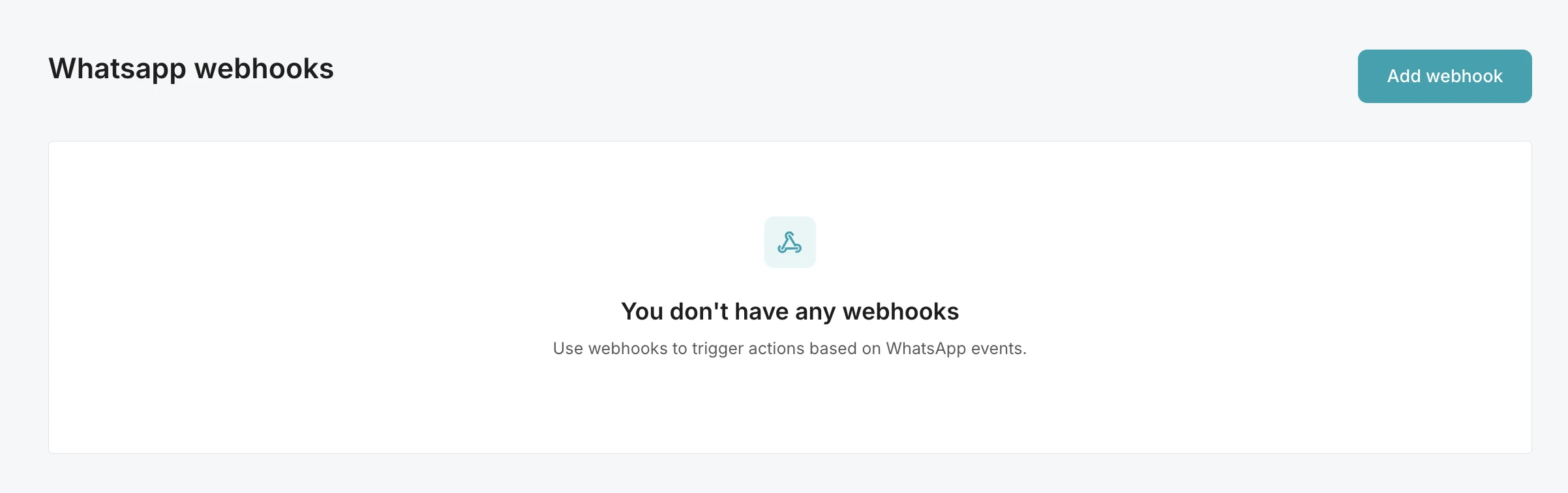
1. Navigate to Developer tools > Webhooks, and scroll down to the WhatsApp webhooks section.
2. Click Add webhook.
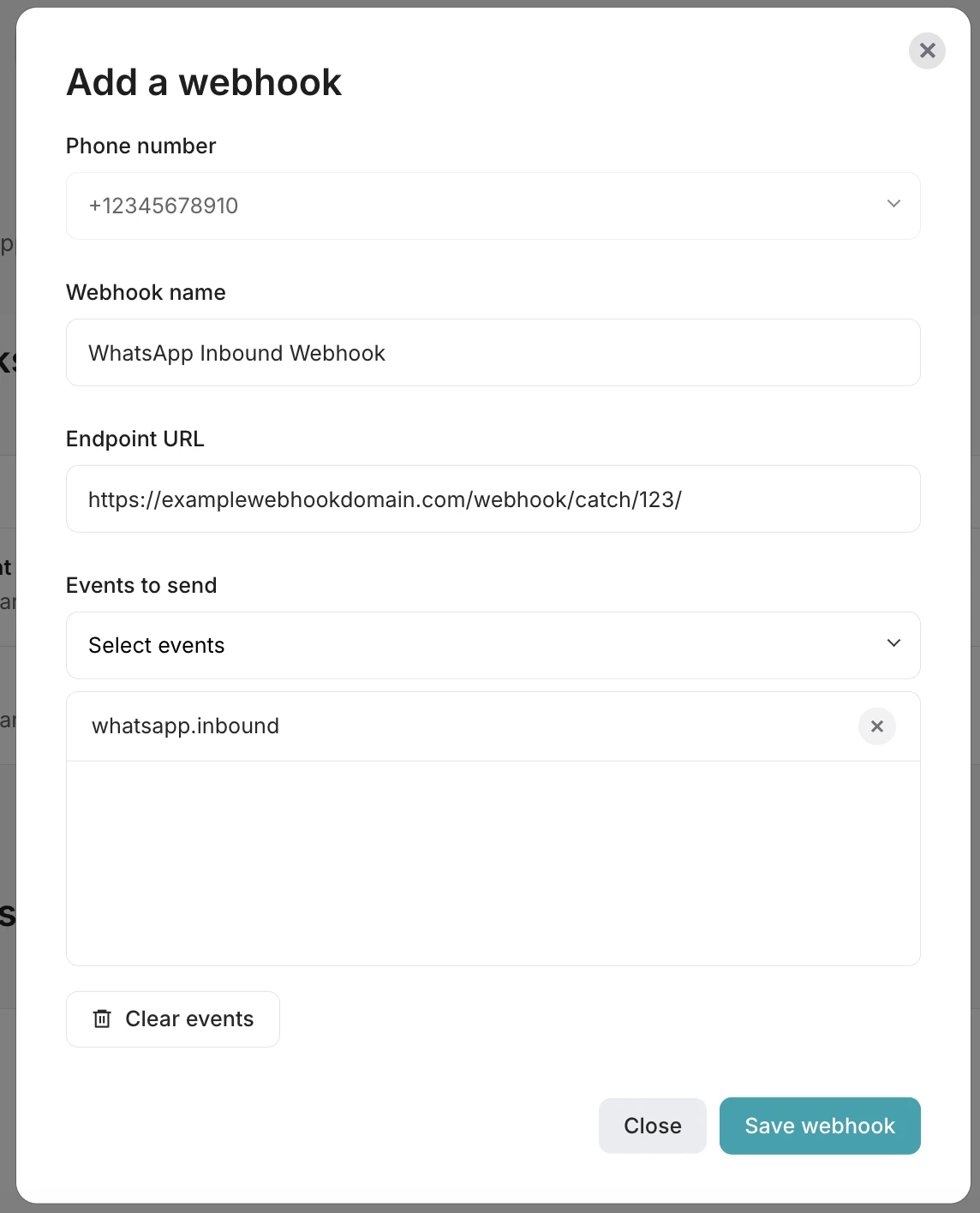
3. In the Add a webhook pop-up, fill in:
Phone number: select the WhatsApp number you want this webhook tied to. If you only have one number connected, this will be the only option
Webhook name: give your webhook a name
Endpoint URL: enter the URL you want inbound messages sent to
Events to send: select whatsapp.inbound
4. Click Save webhook
That's it! Send a WhatsApp message to your connected number to confirm your webhook is receiving events.
Where to find inbound messages
To find inbound messages:
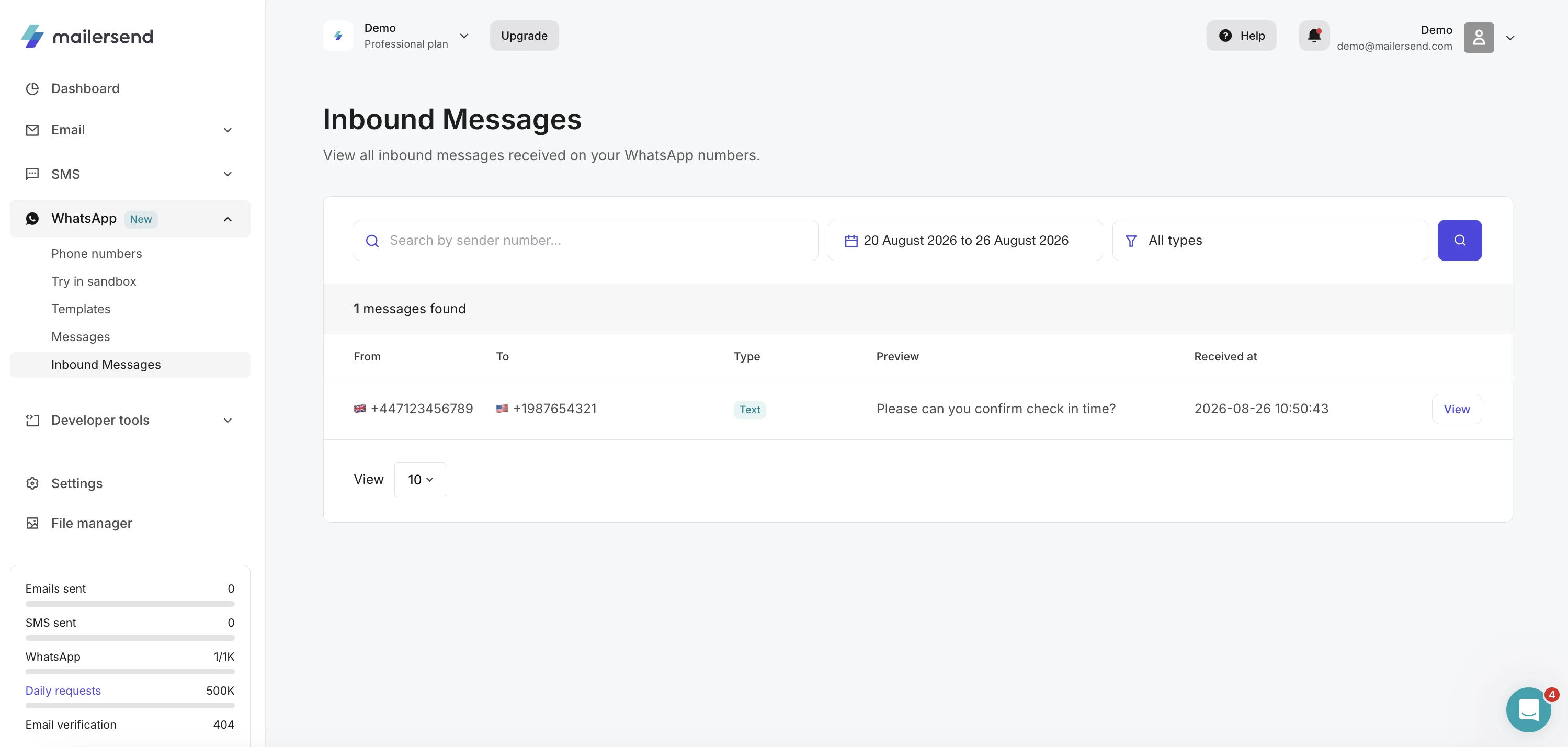
1. Navigate to WhatsApp > Inbound Messages in the app menu.
2. You'll see a list of all inbound messages received on your WhatsApp numbers, with the following details for each: From, To, Type, Preview and Received at.
3. You can search by sender number, filter by date range, and filter by message type.
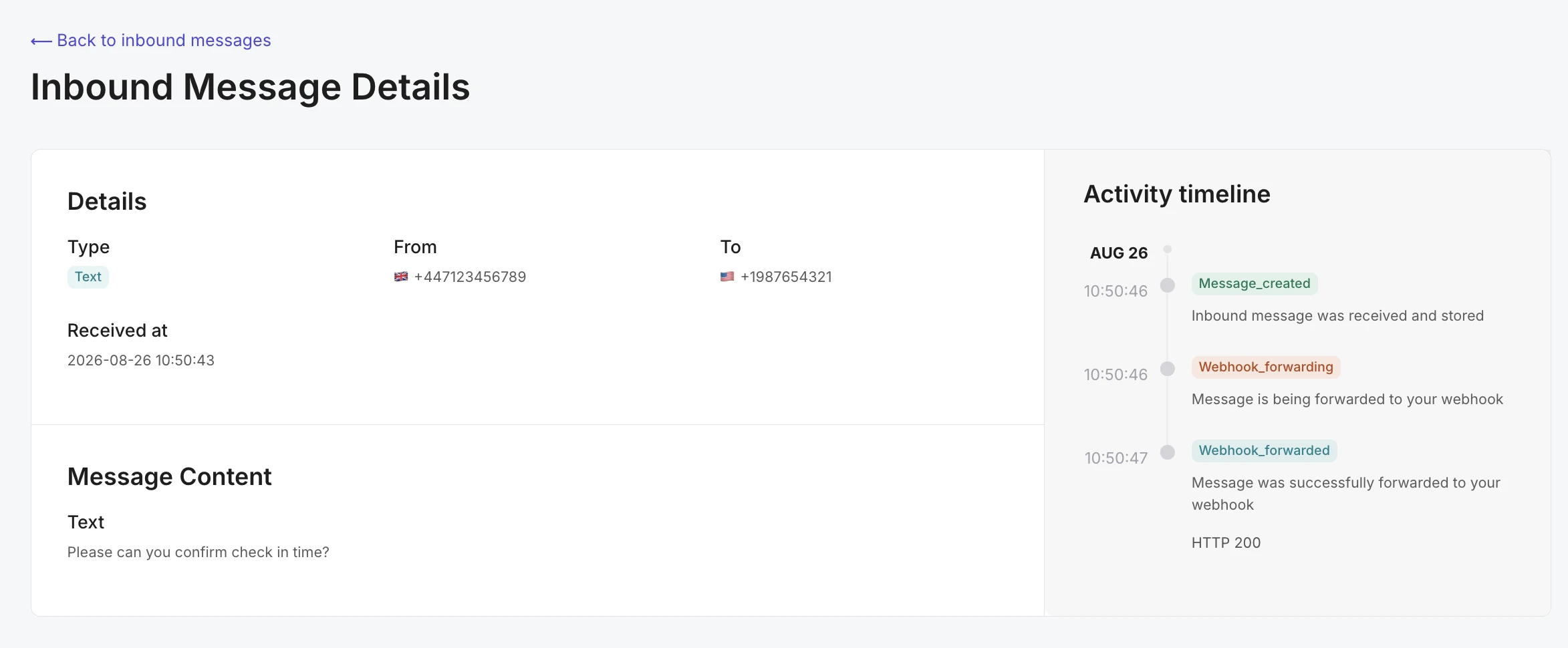
4. Click View on any message to see its full details, including the message content and an Activity timeline showing its journey: when it was received and stored, when it started forwarding to your webhook, and whether it was successfully delivered (with the HTTP status code returned).
Need more info?
Please feel free to contact us at support@mailersend.com and a member of our support team will gladly assist you.