


How to create and manage WhatsApp templates
All templates and an overview of their details can be found on the Templates page. WhatsApp message templates must be approved by Meta before you can use them. You can choose from a selection of pre-approved templates in our library, or sync your own templates from Meta.
How to create a template
1. Go to WhatsApp > Templates from the left-hand navigation menu. Then click Create template.
2. Choose a pre-approved template from the library by clicking Use this template.
3. Set up the template details by selecting the WhatsApp account and entering a template name. You can use the default name or edit it, using lowercase letters, numbers and underscores only.
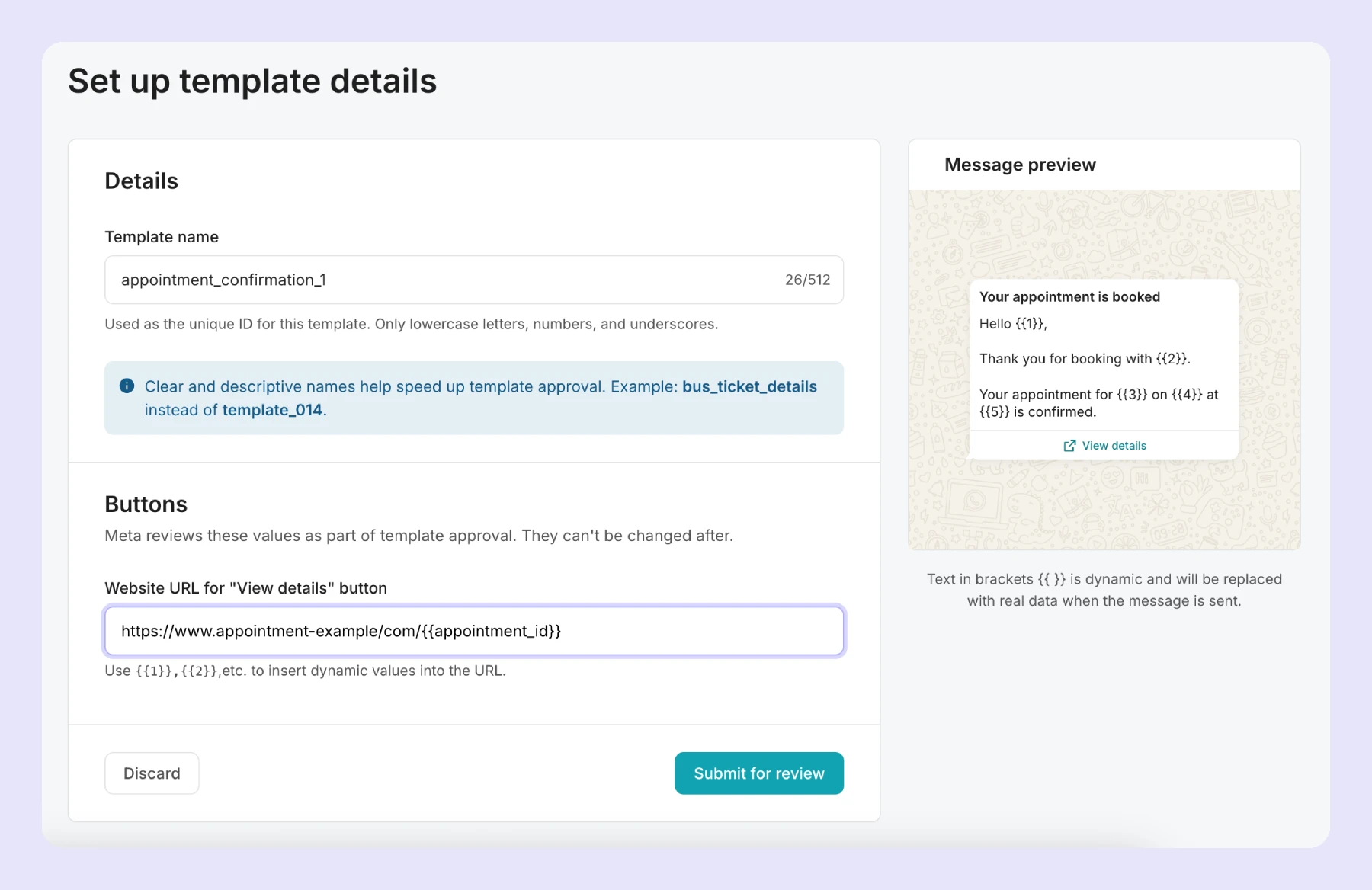
4. When you’ve configured the template, click Submit for review. The template will be submitted to Meta for approval.
How to sync Meta templates
You can sync existing WhatsApp message templates from Meta to your MailerSend account. To sync your templates from Meta, go to WhatsApp > Templates and click Sync with Meta. Your templates will be automatically added.
How to edit or delete a template
To delete a template, click the options arrow next to the View button and click Delete.
Once submitted and approved, a template cannot be modified. In this case, you’ll need to create a new template and resubmit it.
Template status
On the Templates page, you’ll be able to view the status of the templates you’ve submitted to Meta for review. Before you can use a template to send a message, Meta must give a status of Approved.
In review | Template is in review. This can take up to 24 hours. | |
Rejected | The template has been rejected due to a violation of one or more of Meta’s policies. | |
Active - Quality pending | The template has been approved and can be used, but it has not yet received feedback from customers. | |
Active - High quality | The template has little to no negative feedback from customers and can be used. | |
Active - Medium quality | The template has received negative feedback from multiple customers or has low read-rates. The template can be used but may be paused or disabled. | |
Active - Low quality | The template has received a significant amount of negative feedback from multiple customers or has low read-rates, and runs the risk of being paused or disabled. It is recommended that you address any issues from the customer feedback. | |
Paused | The template has been paused due to recurring negative customer feedback or low read-rates. The template cannot be used. | |
Disabled | The template has been disabled due to recurring negative customer feedback and cannot be used. | |
Appeal requested | An appeal has been requested for the template. | |
What to do if a template is rejected
If a template is rejected, you should first review Meta’s guidelines to ensure that the template meets their requirements.
You can view the rejection reason for a template in the Meta Business Support Home. Go to Account overview > View my accounts > select your account > select your WhatsApp Business account > Rejected message templates.
Templates should:
Have clear descriptive names with a maximum of 512 characters, consisting of lowercase alphanumeric characters and underscores. Names do not need to be unique
Be categorized as authentication, marketing or utility (see more about Meta template categorization)
Use the correct template components and parameters (see more about Meta template components)
Be assigned a template language code
Use the Resumable Upload API if you are creating a template with a media header
Common rejection reasons:
Parameters: Missing or incorrect, use of non-supported characters, non-sequential variable parameters, overuse of variables, used at the beginning or end of the message
Content & policy violations: Content that violates WhatsApp’s Commerce or Business policy, abusive or threatening content
Characters/text: Exceeds character limit or emoji limit
Duplication: The message contains the same body and footer of an existing template
Appealing the rejection
If you feel that your template meets the guidelines and was unfairly rejected, you can appeal the rejection in Meta's WhatsApp Manager.
To appeal a rejected template, go to your WhatsApp message templates in Meta and select the correct account. Click the template you would like to resubmit, edit the contents, and click Submit.
More information about WhatsApp template appeals.
Template limits
Unverified business portfolios: 250 message templates per WhatsApp Business Account
Verified business portfolios: Up to 6,000 message templates per WhatsApp Business Account; however, at least one WhatsApp Business Account must have a business phone number with an approved display name
Template creation: Up to 100 templates per WhatsApp Business Account per hour
Template pausing: When a template receives a low quality score, it will be automatically paused for 3 hours in the first instance and 6 hours in the second instance. If the template receives a low quality score for a third time or doesn’t improve within 7 days, it will be disabled
Need more info?
Feel free to reach out to support@mailersend.com. A member of our support team will gladly assist you.