SMTP email queue: how it works, what causes backlogs, and how to fix them

It acts as a buffer between your sending system and the recipient's inbox. Managing load, handling retries, and keeping delivery on track even when something temporarily goes wrong. Here's everything you need to know about how SMTP email queues work, what causes backlogs, and how to troubleshoot them.
What is an SMTP email queue?
An SMTP email queue is a temporary holding area on a mail server where outgoing messages wait to be processed and delivered. When an email is marked "queued mail for delivery," it has been accepted by the sending server but not yet handed off to the recipient's mail server. Queuing is normal and usually resolves in seconds. Persistent queues indicate a backlog caused by rate limits, authentication failures, or server resource issues.
Through a complex series of steps and mechanisms, the SMTP message queue works to make delivery more efficient. It also ensures emails are not lost, bounced or failed if any temporary issues occur, keeping them in the queue until sending resumes.
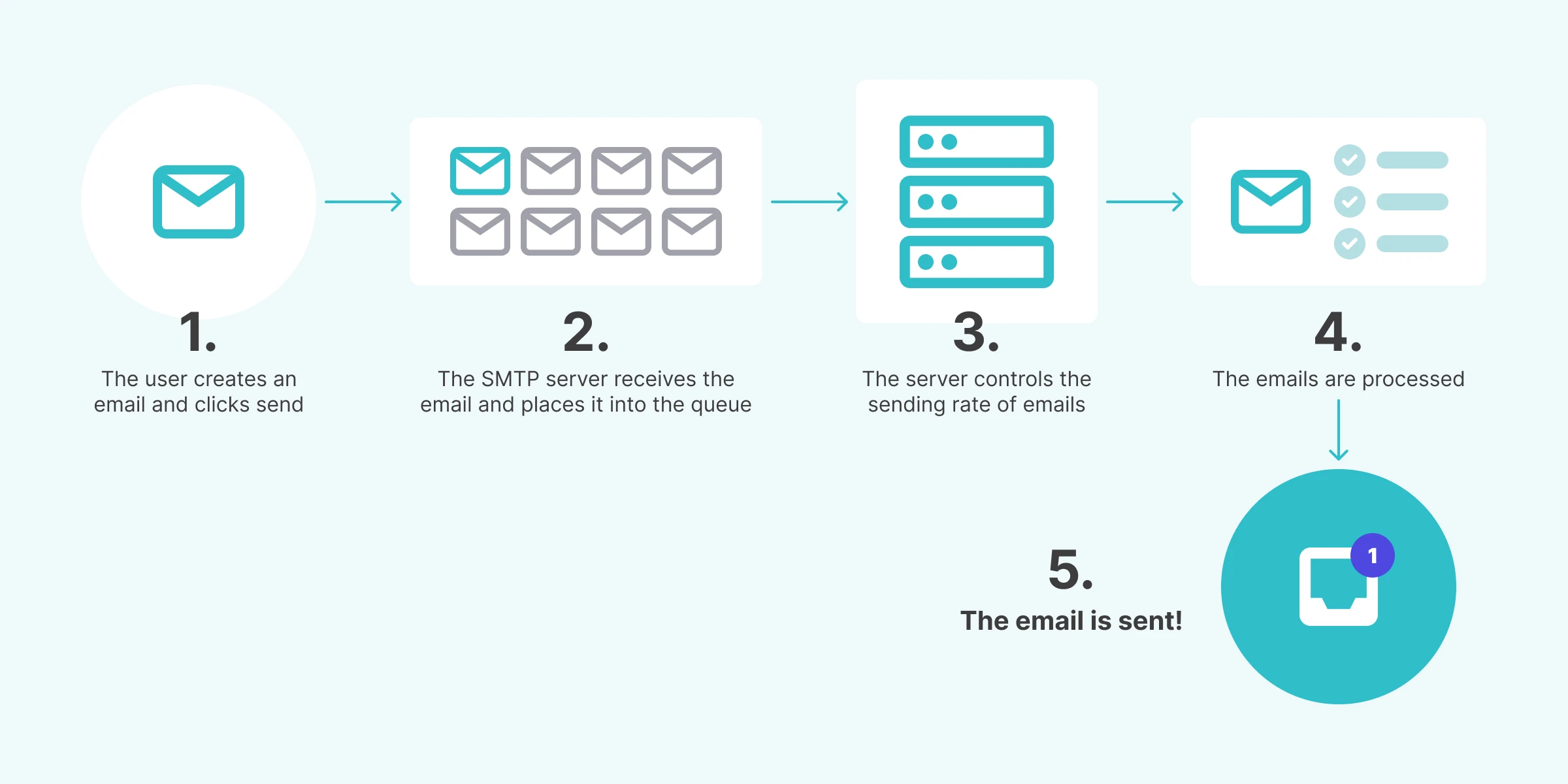
Here’s how it works:
1. The user creates an email and clicks send. The email client (Microsoft Outlook, Gmail, etc.) or email-sending platform (MailerSend) sends the message to the SMTP server.
2. The SMTP server receives the email and temporarily places it into the SMTP queue where it waits to be processed.
3. The server manages the load by controlling the sending rate of the emails. They may be prioritized based on various factors, such as the type of email or recipient.
4. The emails are processed, which involves resolving the recipient’s address and determining the next destination in the journey from sender to recipient. The server also checks for spam, security threats, and conformance to SMTP standards.
5. The email is sent!
Queue lifecycle states
At any point in its journey, an email in the queue sits in one of five states. Knowing what each one means and what to do about it makes troubleshooting much faster.
Status | Description | Solution |
Queued | The email has been accepted and is waiting to be processed | Nothing, expected behavior. Monitor queue depth if it grows unexpectedly |
Deferred | Delivery was attempted but temporarily failed; the server is retrying | Check the SMTP error code and message for the cause. Most deferrals resolve on their own, but repeated deferral patterns can point to authentication issues or rate limiting |
Delivered | The recipient's server accepted the message | Nothing required |
Soft bounce | Delivery failed temporarily (mail server is down, mailbox is full, etc.) | Investigate soft bounce patterns for server or authentication issues |
Hard bounce | Delivery failed permanently (invalid address, domain doesn't exist, etc.) | Remove hard bounces from your list immediately. MailerSend does this with automatic suppression management |
Dead-letter | A self-managed queue concept: The email exhausted all retry attempts without being delivered or permanently bounced | Investigate the failure context (error code, recipient domain, attempt count) before deciding whether to retry, suppress the address, or alert |
Causes of backlogged queues
The whole purpose of SMTP queues is to manage the flow of outgoing emails to avoid issues, so why do backlogs occur? When there are unforeseen delays in processing or delivery, emails can accumulate in the queue, and there are a few different factors that can cause this:
1. Sending too many emails in a short period of time. Sending large volumes of messages in a short amount of time can overwhelm the SMTP server and cause delays in processing.
2. Configuration issues. If your server settings aren’t configured properly, this can affect how efficiently the queue is processed. For example, if retry intervals or limits are not correctly configured.
3. Messages flagged as spam. Emails that trigger spam filters can result in additional reviews and assessments to determine the safety of your message, which can delay their processing.
4. Recipient server issues. If the recipient’s server can’t accept incoming emails for any reason, messages will be left in the queue to retry delivery.
5. Insufficient server resources. If server resources such as CPU and memory become overloaded, email processing will slow down and cause a backlog. Having more simultaneous connections than the server can handle will cause additional strain.
What’s more, some types of emails are more prone to delays than others, contributing to a backlogged queue. Typically, bulk emails like these examples could cause sending delays:
Newsletters. If you’re trying to send a newsletter to thousands of subscribers at once, you'll probably experience a gridlock. This could cause problems if you need to send the newsletter by a certain time. A marketing email service provider like MailerLite will stagger your sending and ensure that subscribers receive them.
Receipts. When many people make purchases at the same time, say on Black Friday, the system sends a confirmation email to each person. Some people might not get their receipts right away if the system is backlogged with shoppers! Using a dedicated transactional email service like MailerSend will ensure emails get delivered on time thanks to a powerful sending infrastructure that’s built for high volumes of messages.
Social media updates. A single person could get dozens or hundreds of social media notification emails a day, which will quickly overwhelm mail servers. The queue worsens when thousands of people sign up for email notifications.
Password changes. Password reset emails are regularly sent to help users gain access to their accounts. But if many people request a new password at once, the emails might go into the queue and frustrate waiting users!
That’s why you should separate your marketing emails and transactional emails, avoid using the same sending server or, in some cases, the same domain name.
How to design a more resilient queue
If you're building your own email sending architecture or just want to optimize how your SMTP setup handles traffic, these design patterns can make a big difference.
1. Use priority lanes
Not all emails are equal. A password reset email is far more time-sensitive than a weekly newsletter. Splitting your queue into priority lanes (for example, high for security and verification emails, normal for receipts and transactional messages, and low for marketing) means critical messages get processed first, even under load.
2. Use idempotent send jobs
When retrying sends, duplication can happen. Assigning a stable, unique message ID to each outgoing email (and checking for it before sending) means you can retry safely without accidentally delivering the same email twice.
3. Implement a backoff mechanism
If a recipient server starts returning errors, like a 421 "temporarily unavailable" response, hammering it with retries will only make things worse. A backoff mechanism slows down retry attempts progressively, giving the receiving server time to recover while protecting your sender reputation. Configure your setup so that if you start seeing 421 deferrals or 4.7.28 rate-limiting errors, concurrency is reduced, send rate is slowed, and retries are staggered.
4. Set up a dead-letter queue
After a message exhausts all retry attempts, it shouldn't just disappear. A dead-letter queue captures these failed emails with full failure context, including the response code, recipient domain, attempt count, and provider, so you can investigate incidents and decide whether to retry, suppress, or alert.
MailerSend's approach to this is Suppressions lists. There are separate lists for bounces, unsubscribes and spam complaints. Plus, an on hold list that temporarily blocks addresses that have soft bounced multiple times, and a blocklist where you can add email addresses manually or create patterns to automatically block specific types of emails.
Check out our help guide to learn more about managing email suppressions.
The metrics to keep track of
Finding out your queue has a backlog when recipients complain isn't ideal. These are the key metrics to watch proactively:
Queue depth by priority lane: Are low-priority messages crowding out critical ones?
Oldest queued message age: An increasing oldest message age is a clearer warning sign than raw queue depth alone
Retry rate by provider/domain: Spikes can signal recipient server issues or reputation problems with a specific provider
Hard bounce vs. soft bounce ratio: Hard bounces indicate permanent failures (invalid address); soft bounces are temporary. A hard bounce spike can indicate list quality issues
Dead-letter volume: A growing dead-letter queue means something systemic is failing
If you're using MailerSend, the Emails dashboard gives you visibility into every stage of an email's journey, from queued to sent, soft bounced, hard bounced, and more. Plus, there's a dedicated Deferred status for emails currently in the retry window. This allows you to see the exact SMTP error behind each deferral, which is useful for spotting DNS/authentication issues or identifying patterns in repeated deferrals.
You can also set up webhooks to trigger workflows based on activity events. For example, if deferrals for Gmail addresses surpass a threshold (a signal that Gmail is rate-limiting you), you can automatically slow down your sending rate.
Resolving SMTP email queue backlogs
If you have a backlog of emails waiting to be sent, you could wait for the SMTP server to finish sending. However, recipients may be waiting to receive time-sensitive transactional emails, like webinar login details. Here’s a quick troubleshooting guide for email server connectivity issues.
1. Check your server logs and performance
Analyze your server log files for any error messages, warnings, or other signs of delivery issues. Look out for temporary or permanent failures that could be the cause of the backlog.
Next, it’s a good idea to check your overall server performance. You want to ensure you have sufficient resources to handle the processing of emails, so monitor CPU, disk usage, memory, and concurrent connections.
2. Contact the provider
Major email services often have rate limits attached to your IP address. If you try to send too many emails at once, the provider will slow the delivery rate. This prevents spam from being sent, but it can be frustrating when you have a legitimate reason to send a large volume of messages.
A more proactive approach is to implement staggered sending on your end. Instead of sending 100,000 emails at once, use the bulk endpoint to send batches of 5,000 at a time, with short intervals in between. MailerSend's send_at parameter also lets you schedule batches for specific times. This keeps your send rate predictable and reduces the chance of triggering provider rate limits in the first place.
3. Investigate spam filters
Determine if spam filters are extending the processing time of emails or incorrectly flagging your messages as spam. If you suddenly send emails with a new IP address, mail servers might think that you’re a spammer, and you may even be blocked.
You first need to build a positive email reputation with your domain and IP address to prove that you're a genuine sender. Otherwise, your recipients might not even see their inbound emails—they'll go straight to the spam folder.
Landing on an email blocklist is another way spam filters get triggered. Inbox providers and spam filters use blocklists to block IPs and domains suspected of harmful activity, and legitimate senders can end up on them, too.
The best defense is early detection. MailerSend's Blocklist monitoring feature automatically checks your domains and IPs against popular blocklists every 2 to 6 hours (depending on your plan), with real-time alerts and an impact score to help you prioritize delisting. If you're listed, you'll see the specific delisting requirements and a direct link to the blocklist's removal page.
4. Check firewall and configuration settings
Aggressive firewall settings on your SMTP server can sometimes cause a backlog of emails. Third-party security products can block legitimate traffic, causing receiving servers to return temporary SMTP response codes. When this happens, emails are placed back into the queue for another retry.
You should also confirm that you have correctly set the retry intervals and limits to handle temporary failures. These limits must be appropriate for your expected email volumes.
5. Examine server software
Ensure your SMTP server software is configured with the latest patches and updates. On the flip side, check whether or not any ongoing maintenance or updates could be impacting server performance.
6. Test sending smaller volumes of email
Carry out performance tests on your SMTP server by sending smaller batches of emails and monitoring how the server handles them. If a backlog doesn’t accumulate, it would suggest that your server isn’t configured for, or doesn’t have the resources to handle, higher volumes of outgoing emails.
Managing queues in Postfix and Exim
If you're running your own mail server, here are the most useful queue management commands for the two most common MTAs:
Action | Postfix | Exim |
List queued emails | postqueue -p | exim -bp |
Retry all queued emails | postqueue -f | exim -q -v |
Remove all queued emails | postsuper -d ALL | exiqgrep -z -i | xargs exim -Mrm |
Remove a specific email | postsuper -d <message-id> | exim -Mrm <message-id> |
A word of caution: don't drain the queue before investigating the cause of the backlog. You may delete emails that could still be delivered once the underlying issue is resolved.
How MailerSend can help
Robust infrastructure
MailerSend is built to handle large volumes of emails so that efficient email delivery can be maintained even with high-traffic influxes. It takes care of email queuing and offers an advanced bulk emailing feature to easily send emails in batches so you can retain sending resources and optimize sending.
What’s more, built-in security features for email authentication and encryption give you peace of mind that your transactional email is always safe, secure, and reliable.
Real-time activity log
Built-in, real-time activity logs give you a complete view of every email's journey, from processed and sent to delivered, bounced, or deferred. Emails that are temporarily delayed and retrying now show a dedicated Deferred status, along with the exact SMTP error message behind the delay.
This makes troubleshooting much faster: instead of guessing why a message hasn't arrived, you can see whether it's mid-retry, hit an authentication issue, or is being rate-limited by the recipient's server.
Access logs via the dashboard, pull them into your own systems via the API, or set up webhooks to trigger notifications and workflows automatically.
Advanced analytics
Access key metrics and keep track of important KPIs that inform you about the performance of your email deliverability. Create and export reports for spam complaints, hard bounces, soft bounces, and more, and integrate MailerSend Analytics with your CRM or other apps.
Deliverability experts
We don't just know how to send emails, we know how to reach inboxes. The MailerSend team has deep, hands-on experience in email deliverability, and our dedicated experts work continuously to improve delivery rates for every customer. They reduce bounce rates and spam complaints, monitor blocklist activity, maintain sender reputations, and manage MailerSend's sending infrastructure for optimum performance.
Multiple domains and SMTP users
If you're an agency or managing transactional email for multiple clients or brands, MailerSend is built to handle it all from a single account. You can add a separate sending domain for each client, keeping their domain reputation, activity data, API keys, and SMTP credentials completely isolated from one another. That means if one client has a deliverability issue, it stays contained. It won’t affect anyone else’s domain reputation.
Each domain can have its own SMTP users with unique credentials, so clients or team members only ever have access to what's relevant to them. Combined with role-based permissions, you can give a client visibility into their own analytics and activity without exposing any other account's data.
For agencies scaling up, the Professional plan includes unlimited domains, and you can automate the entire onboarding workflow, including domain creation, verification, API key generation, and DMARC monitoring setup, via the API.
Your queue, under control
Email queues are fundamental to reliable delivery at scale. Understanding how they work and what to do when they back up gives you a meaningful advantage when things go wrong. But the good news is that you don't have to manage all of this yourself.
Using a dedicated SMTP relay like MailerSend means the infrastructure, deliverability optimization, and reputation management are handled for you, so you can focus on building great products.
FAQs
What is an SMTP email queue?
An SMTP email queue is a temporary buffer that holds outgoing emails until they can be processed and delivered. Instead of sending all messages at once, which can overwhelm servers and trigger spam filters, the queue releases them in a controlled, manageable flow.
What does queued mail for delivery mean?
It means your email has been accepted by the mail server and is waiting to be sent. This is normal behavior, especially when sending in bulk. In most cases, the email is delivered within seconds or minutes.
What causes emails to get stuck in the queue?
The most common culprits are recipient server issues, provider rate limits, spam filter flags, misconfigured server settings, or insufficient server resources. Oversized messages and attachment-heavy emails can also slow things down.
How do I fix a queued email that isn't sending?
Start by checking your server logs for error messages, then review your server performance and configuration settings. Check whether spam filters are flagging your messages, verify your firewall isn't blocking legitimate traffic, and confirm your retry intervals are correctly set. If you're hitting provider rate limits, a staggered sending approach can help.
What is the difference between a deferred email and a bounced email?
A deferred email is temporarily delayed. The server will keep retrying delivery until it either succeeds or the retry window closes. A bounced email has permanently failed: a hard bounce means the address is invalid, while a soft bounce indicates a temporary issue that eventually couldn't be resolved. With MailerSend, deferred emails show their own status in the Emails dashboard so you can monitor them in real time.
How does MailerSend handle email queuing?
MailerSend's infrastructure is built to handle high-volume sending without you needing to manage queue configuration yourself. Emails are processed reliably, hard bounces and unsubscribes are automatically added to suppression lists, and the Emails dashboard gives you full visibility into every email's journey, including a dedicated Deferred status for messages currently retrying. You can also set up webhooks to trigger workflows based on delivery events.