


DKIM update: Retiring TXT records and migrating to 2048-bit keys

We are now also issuing 2048-bit dual keys, which are much more difficult to decrypt, making authentication more secure. And with two keys instead of one, you won’t need to edit your DNS records. We’ll simply rotate the keys, no fuss, no downtime.
This means if you are currently authenticating your domains with DKIM TXT records, you must migrate to the new dual CNAME records before February 1, 2027, so that your emails continue to authenticate and your deliverability isn’t affected.
If you are using 1024-bit single CNAME records and haven’t yet migrated to the new 2048-bit dual keys, we recommend that you also update your DKIM records to the latest and most secure version.
How to check your domains’ DKIM records
If you need to update the DKIM records for any of the domains on your account, you will see a notification in the application dashboard and a message next to the affected domains on the Domains page. You will also receive an email from us if our records show that your DKIM records are outdated.
To check whether you need to migrate to the new DKIM keys for your domains:
1. Go to Email > Domains and hover over the “Information” tooltip icon for any domains on which it appears.
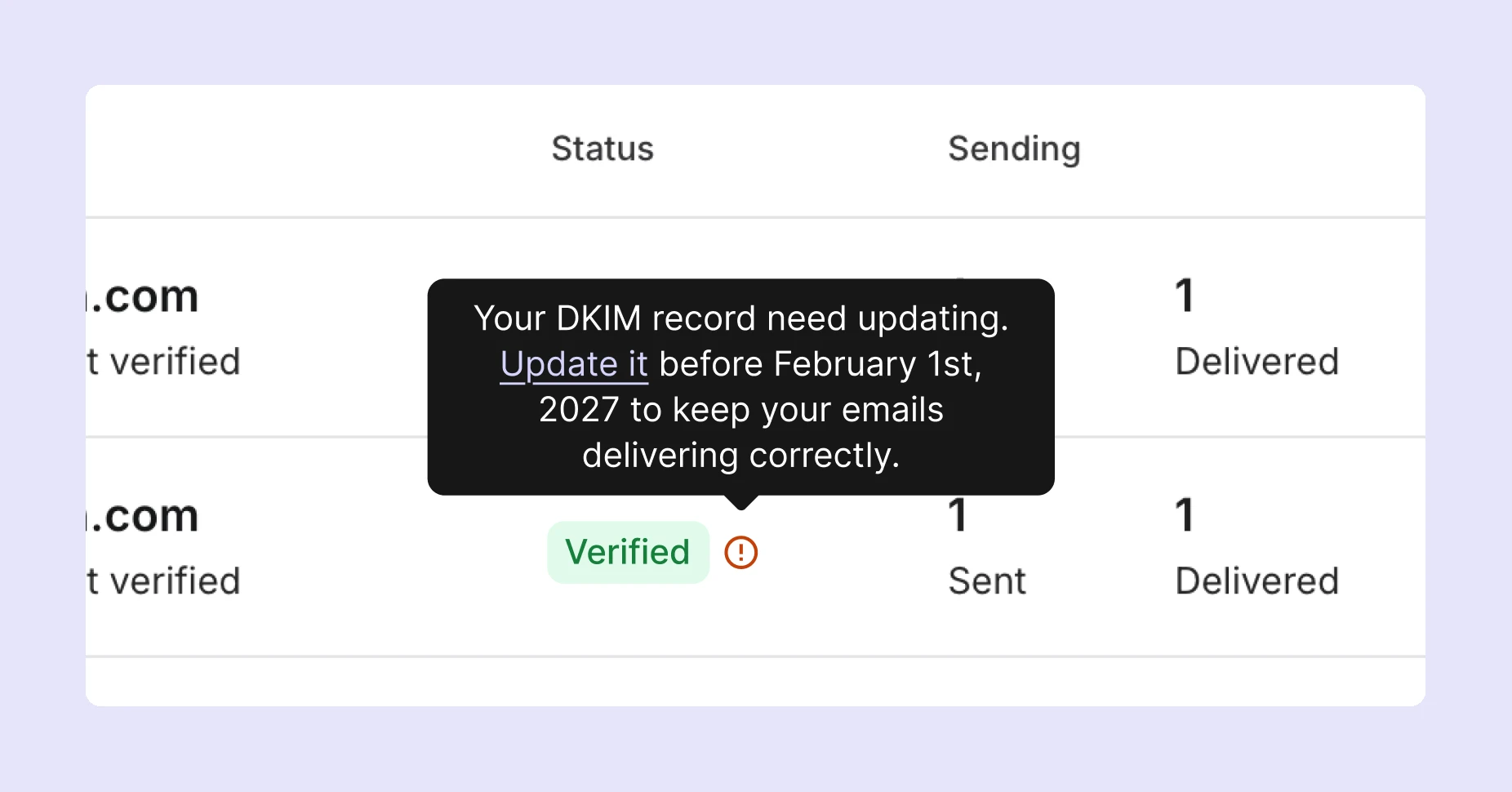
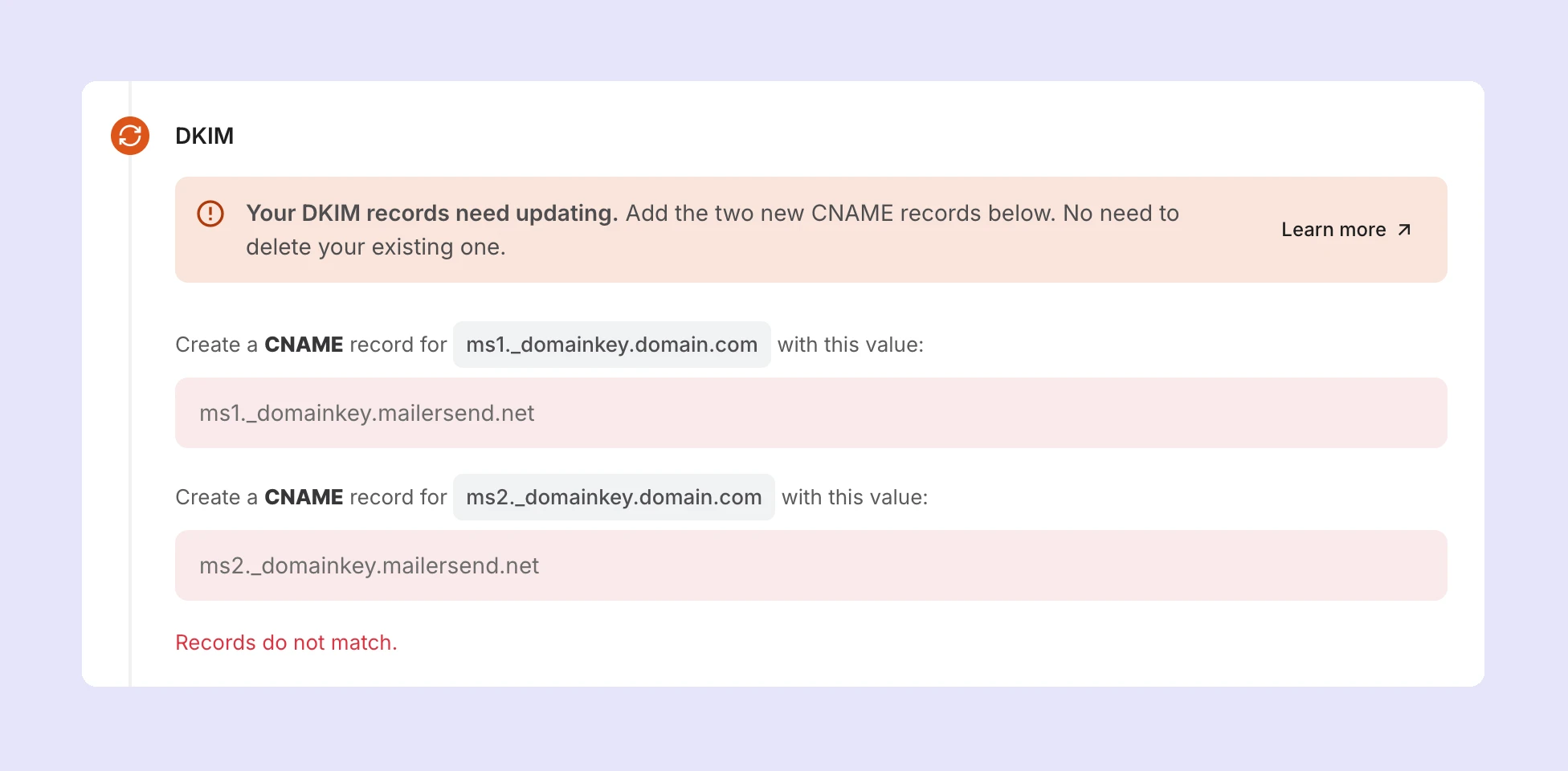
2. Alternatively, click on Manage for any domain, and the Domain verification pop-up will appear with the message: “Your DKIM records need updating. Add the two new CNAME records below. No need to delete your existing one.”
How to migrate to the new records
1. Log in to your account, go to Email > Domains, and click Manage next to your domains.
2. Log in to your domain’s DNS provider account and navigate to your DNS records.
3. Create 2 new CNAME records with the names and values provided by MailerSend and save them.
4. Head back to MailerSend, scroll to the bottom of the Domain verification pop-up, toggle the option I have added DNS records, and click Re-check now.
If the new records have been added correctly, once they propagate, the domain status will update to Verified on the Domains page. In most cases, verification is completed in minutes, but it can take up to 48 hours.
If, after 48 hours, the domain is still not verified, check that you’ve added the records properly and click Re-check now again. If another 48 hours pass and the domain is still not verified, please reach out to our customer support team for assistance.
Check out our Domain verification guide for more information. If you have any questions or need help, please contact our customer support team.